
|
|
||
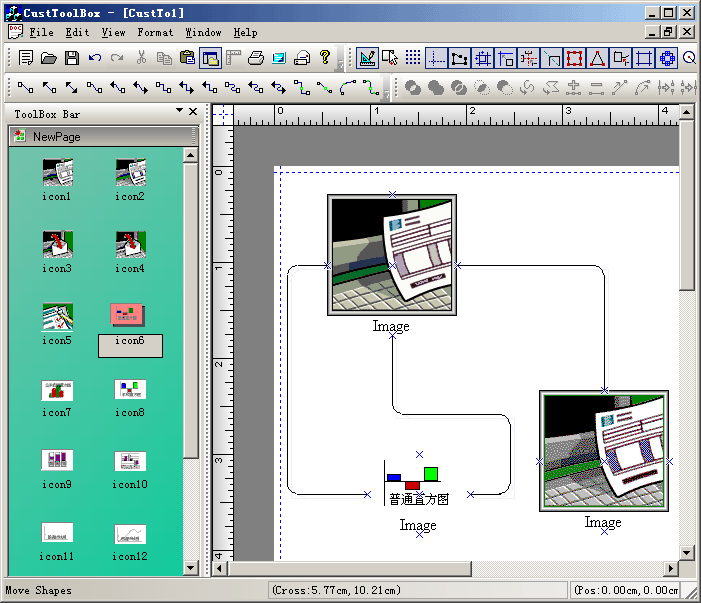
Steps: 1.Add a new class CMyImageShape that use CFOImageShape as base class. 2. Override the OnDraw3d and OnDrawFlat methods of CMyImageShape to handle the new drawing. void CMyImageShape::OnDraw3d(CDC *pDC) { // CFOImageShape::OnDraw3d(pDC); CRect rcTemp; rcTemp = CRect(m_lpShapePoints[0],m_lpShapePoints[2]); rcTemp.NormalizeRect(); CString strText = GetObjectCaption(); CSize sizeText = GetTextSize(pDC,rcTemp,strText); rcTemp.bottom -= sizeText.cy; DoDrawImage(pDC,rcTemp); CRect rcText; rcText = rcTemp; rcText.top = rcTemp.bottom; rcText.bottom = rcText.top + sizeText.cy; pDC->Rectangle(&rcText); if (m_pEdit != NULL) { if(m_bWithLabelEditing) { OnDrawTextAndEdit(pDC,rcText,FALSE); } } else { DrawText(pDC,GetObjectCaption(),&rcText,GetDrawFormatType()); } } 3. Create a new toolbox item object class CMyListItemObj that use CFOToolBoxItem as base class. 4. Create a new toolbox window class CMyToolBoxWnd that use CFOMultiToolBoxWnd as base class. 5. Create a new toolbox window bar class CMyToolBoxBar that use CFOPControlBar as base class. 6. Override the following method of CCustToolBoxView: CFODrawShape *CCustToolBoxView::GetOleDataObject(COleDataObject* pDataObject) { CMyListItemObj *pItem = new CMyListItemObj; if(!CFOToolBoxPageWnd::CreateFromOleData (pItem,pDataObject)) { delete pItem; pItem = NULL; return NULL; } CFODrawShape *pReturn = NULL; if(pItem != NULL) { CRect rcCreate = CRect(0,0,0,0); pReturn = GetCurrentModel()->DoCreateShapeByType(pItem->GetType(),rcCreate,"",pItem); delete pItem; pItem = NULL; } return pReturn; } 7. Override the following methods of CMyExtDataModel: CFODrawShape *CMyExtDataModel::DoCreateShapeByType(UINT m_drawshape, CRect &rcCreate, CString strFileName, CFOToolBoxItem *pCurItem) { CFODrawShape *pReturn = NULL; CString strCaption; CString strName; strCaption = ""; strName = ""; CPoint ptTrack = rcCreate.TopLeft(); if(m_drawshape != FO_COMP_NONE) { CRect rc(rcCreate); rc.NormalizeRect(); if(rc.IsRectEmpty()||(rc.Width()<=10 && rc.Height()<20)) { if(m_drawshape == 1220) { rc = CRect(ptTrack.x-70,ptTrack.y-70,ptTrack.x+70,ptTrack.y+70); } } if(m_drawshape == 1220) { if(pCurItem->IsKindOf(RUNTIME_CLASS(CMyListItemObj))) { CMyListItemObj *pItem = (CMyListItemObj *)pCurItem; pReturn = new CMyImageShape; pReturn->AddRef(); pReturn->Create(rc,""); if(!pItem->m_strImageFileName.IsEmpty()) { // Get application path. CString strPathX = AfxGetApp()->m_pszHelpFilePath; strPathX = strPathX.Left(strPathX.ReverseFind('\\')); // Get icon file path. CString strFile; strFile = strPathX+"\\Tools\\"; strFile += pItem->m_strImageFileName; ((CMyImageShape *)pReturn)->LoadImage(strFile); } strCaption = GetUniqueCaption(FO_COMP_IMAGE); strName = GetUniqueName(FO_COMP_IMAGE); pReturn->SetObjectCaption(strCaption); pReturn->SetObjectName(strName); } } else { pReturn = CFODataModel::DoCreateShapeByType(m_drawshape,rcCreate,strFileName); } } return pReturn; } 8. Modify the codes of CMainFrame to create the new style toolbox window.
|
Copyright ?1998-2007 UCanCode.Net Software, all rights reserved.
Other product and company names herein may be the trademarks of their respective owners.
Please direct your questions or comments to webmaster@ucancode.com