| UCanCode E-XD++
Visualization ToolKit is an
extremely flexible and robust graphical framework for building
visual interfaces that display real-time data, from Process
Control operator displays and HMI screens to Traffic and
Telemetry Monitoring displays and Supply Chain visualizations.
UCanCode provides a complete set of services, consisting of
design tools and a software development kit
(SDK), for developers who want to create a user interface for
industrial monitoring and process control drawing
applications. These displays feature highly customized graphical
objects that connect to underlying real-world data.
Developers prefer ucancode's
solutions because they are easy to use, completely customizable,
and can deploy to both the desktop and the Web. ucancode is the
industry’s leading real-time SPC software, automating
quality data collection and analysis
E-XD++ Visulization Graphics
Toolkit is the best toolkit for building any electric power Softwares, as below:
1. Design the
electric power Software
symbols
with shapedesigner:
With E-XD++ full edition, there
is a shapedesigner application shipped, with this diagramming
tool, you can use many advance features to build any kind of
HMI Software symbols, as below:
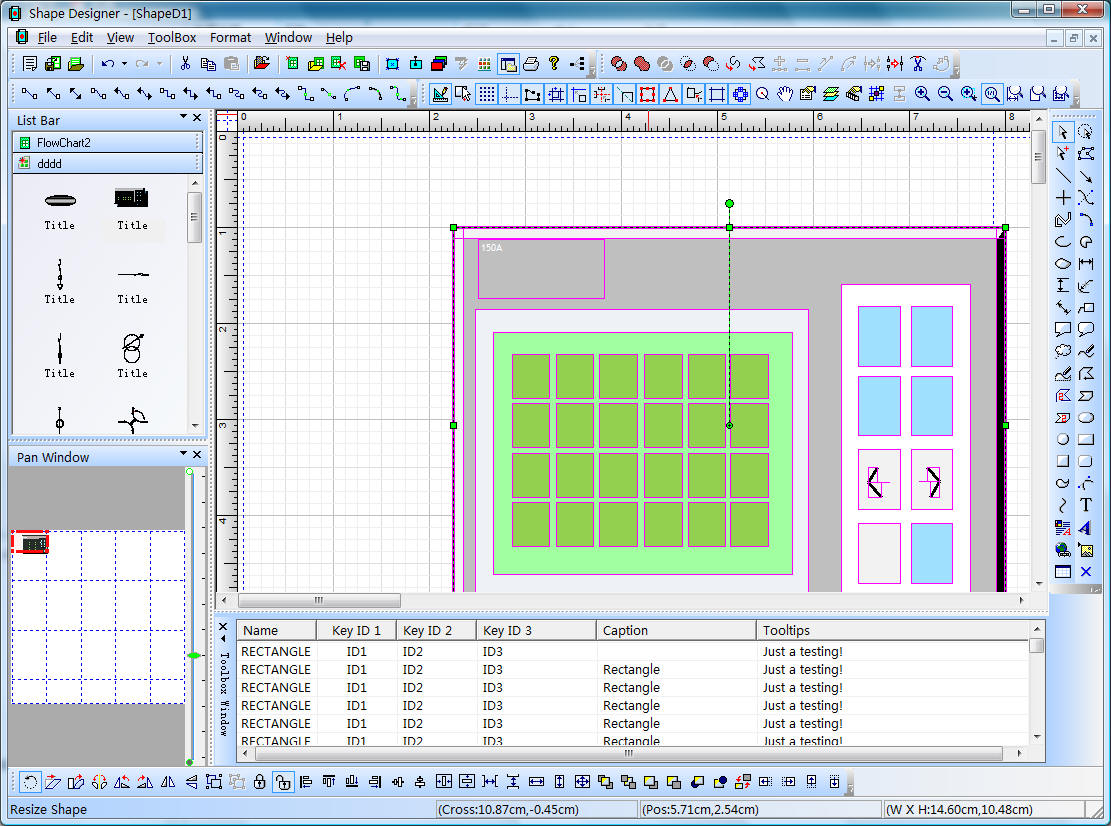
When one composite symbol is
designed, just use Copy/Paste to place it within the toolbox
window at left side. These HMI Symbols will be ready for
design HMI Screen in future.
2. Design HMI Graphics
Software Screen:
With E-XD++ full edition, there
is also a ready to use HMI Screen design tool shipped,
with this tool, you can use any symbols within the toolbox
window at left side to create any screen as you want, just drag
and drop, very simple and easy:
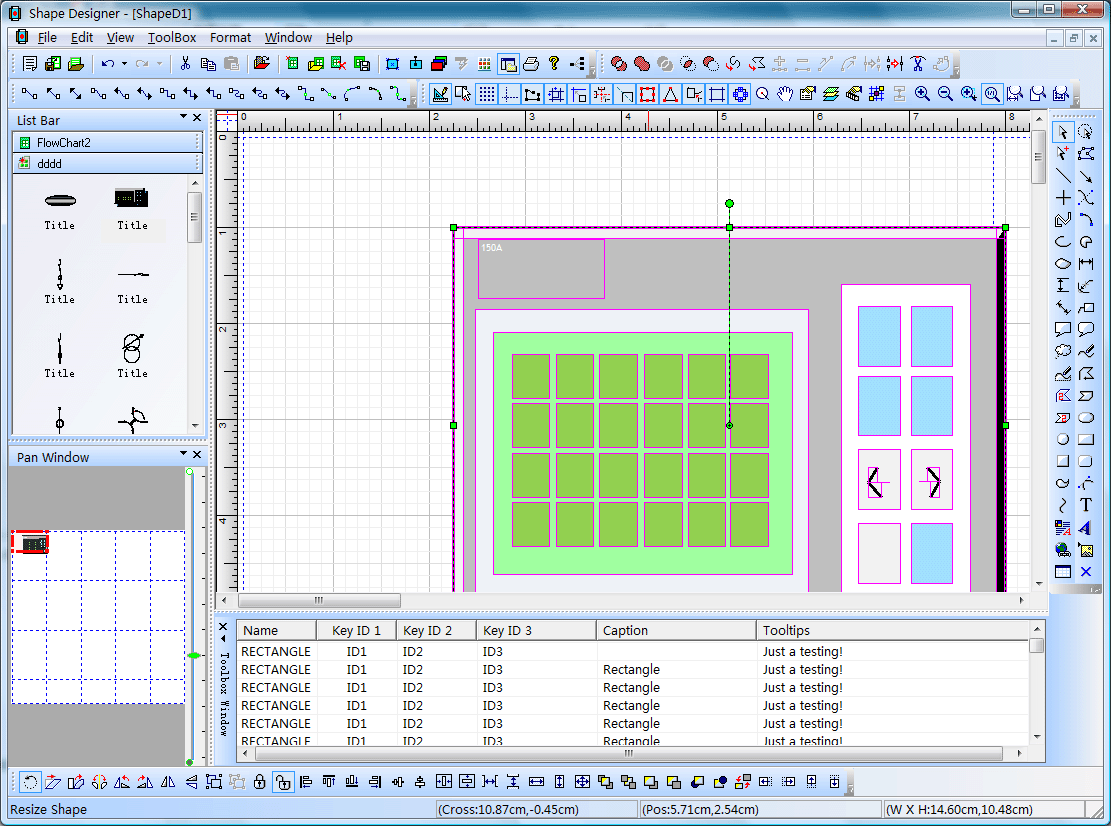
If you want to identify any
shape on the screen, just use the following dialog to define
some key value. There are three key values that can be used to
do this work, as below:

We change it's key value 1 to
K2.
After one HMI Software
Screen is finished, you can save it to a xdg file. You can
design as many screen as you want.
3. Building your HMI
Software:
With full edition of E-XD++
Visualization Component, there is an appwizard that will help
you building a base framework of HMI Software without
written a line of codes, after the base framework of your
application is finished, you can import any XDG files into your
application, (Please remember the resource type must be XDGRes),
to load a HMI Screen just call the following codes, it is
very easy:
LoadXdgFromResource(IDR_MAIN, _T("XdgRes"), FALSE);
In fact, this line of code can
be called at any place if you want to load any new screen at any
time.
4.
Update the screen with data:
Mostly we can use the WM_TIMER
of CWnd to recieve the data and refresh the HMI Screen,
if you want to update only one shape, just call UpdateControl of
this shape, but if you want to update a list of shapes one time,
we recommend you to call UpdateShapes, this will works more
effective. If you want to handle the click event, you can
DoButtonClickEvent to do that.
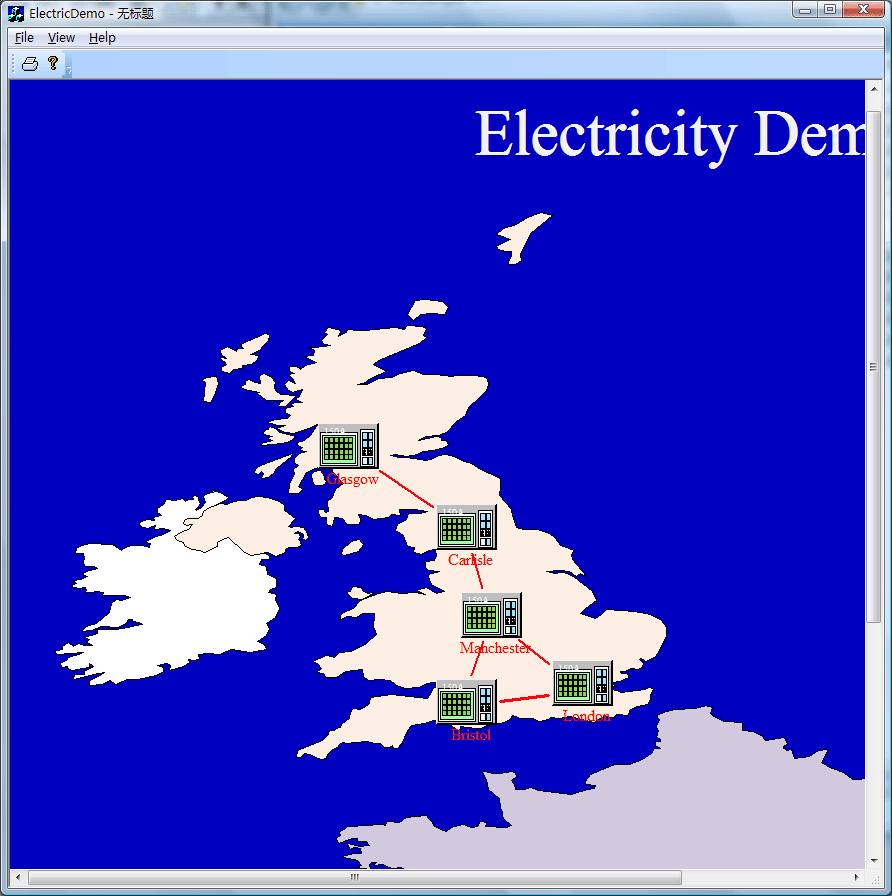
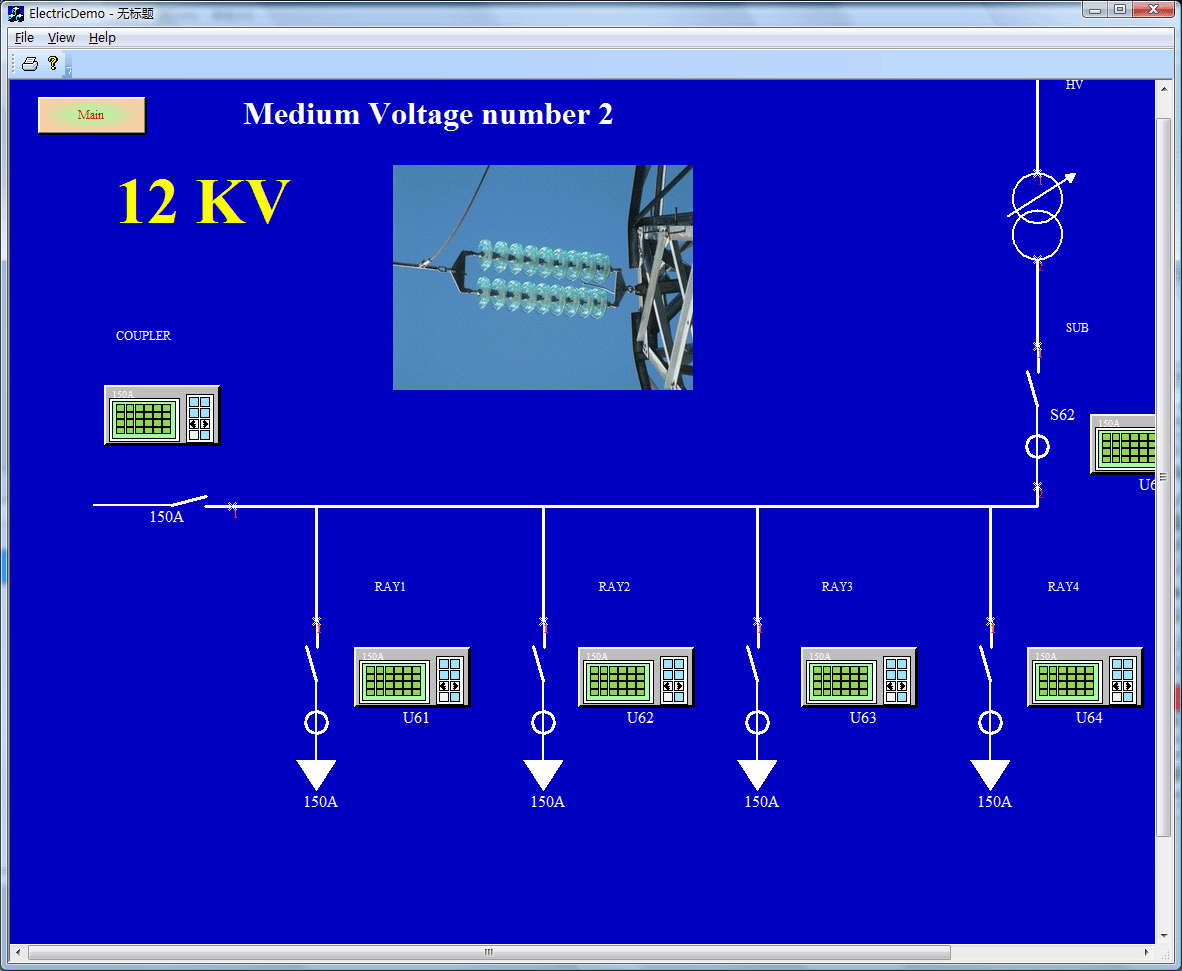
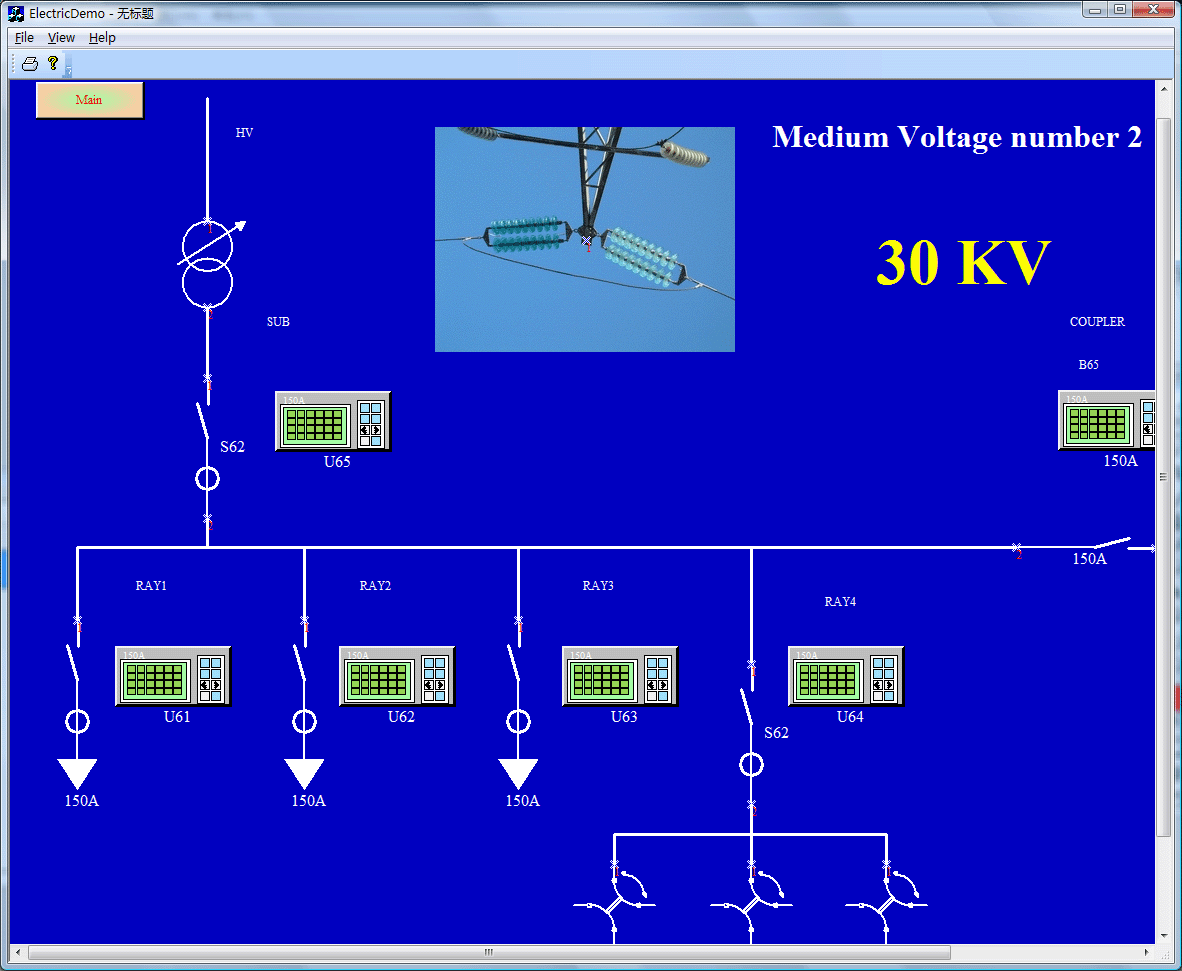
That's all, below is the running
- time mode of this sample, this sample has three XDG hmi
screen, click any item to switch to a new screen.
1. Load screen:
void
CElectricDemoView::OnInitialUpdate()
{
SetCurrentModel(GetDocument()->m_pDataModel);
CFODrawView::OnInitialUpdate();
LoadXdgFromResource(IDR_XDGRES_MAIN,
_T("XdgRes"),
FALSE); GetCurrentModel()->SetDesignMode(FALSE);
SetTimer(ID_TIMER_ID,
200, NULL);
pCurShape = NULL;}
2. Do click action:
void
CElectricDemoView::OnLButtonUp(UINT
nFlags, CPoint point)
{
CFODrawView::OnLButtonUp(nFlags,
point);
pCurShape = NULL;
CPoint local = point;
FODPtoLP(&local);
CFODrawShape *pShape
= (CFODrawShape *)GetCurrentModel()->HitTest(local);
CString str;
if(pShape
!= NULL)
{ m_pCurRunModelHitShape =
NULL;
m_pCurRunModelMoveInShape =
NULL; CString str = pShape->GetKeyId1();
if(str
== _T("C1"))
{
LoadXdgFromResource(IDR_XDGRES_VOL1,
_T("XdgRes"),
FALSE);
}
else if(str
== _T("C2"))
{
LoadXdgFromResource(IDR_XDGRES_VOL2,
_T("XdgRes"),
FALSE);
}
else if (str
== _T("C3"))
{
LoadXdgFromResource(IDR_XDGRES_VOL3,
_T("XdgRes"),
FALSE);
}
else if (str
== _T("C4"))
{
LoadXdgFromResource(IDR_XDGRES_VOL3,
_T("XdgRes"),
FALSE);
}
else if (str
== _T("C5"))
{
LoadXdgFromResource(IDR_XDGRES_VOL1,
_T("XdgRes"),
FALSE);
}
else if (str
== _T("C6"))
{
LoadXdgFromResource(IDR_XDGRES_MAIN,
_T("XdgRes"),
FALSE);
}
m_pCurRunModelHitShape =
NULL;
m_pCurRunModelMoveInShape =
NULL;
GetCurrentModel()->SetDesignMode(FALSE);
pCurShape =
GetCurrentModel()->FindShapeWithKey1(_T("E1"));
}
}
3. Recieve data with timer:
int
num[] = {20,
30, 15,
18, 8,
12, 6,
33, 25,
60 };
void CElectricDemoView::OnTimer(UINT
nIDEvent)
{ if(nIDEvent
== ID_TIMER_ID)
{
int xx = rand()
% 10;
int cur = num[xx];
if(pCurShape
!= NULL)
{
CString strText;
strText.Format(_T("%u
KV"), cur);
pCurShape->SetObjectCaption(strText);
pCurShape->UpdateControl();
}
}
else
{
CFODrawView::OnTimer(nIDEvent);
}
}
|