
|
|
||
and Main Window:
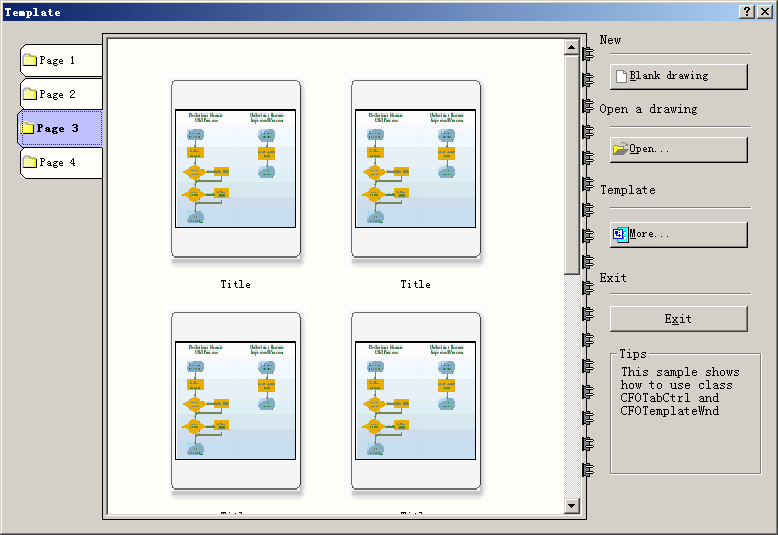
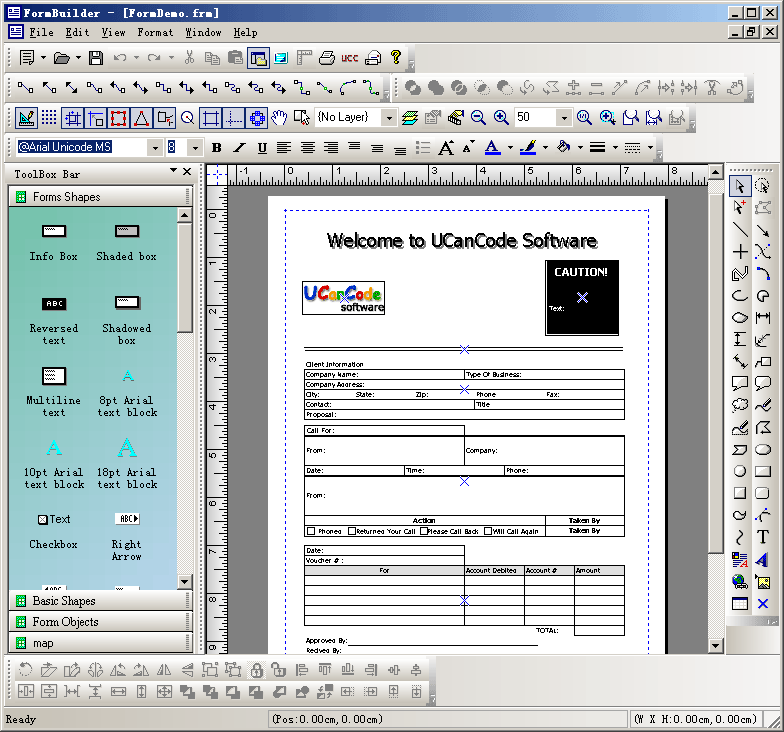
Steps: 1. Create a template class CTemplateDlg. 2. Create tab control and template pages within this class: CFOTabCtrl m_wndTab; CFOTemplateWnd m_wndPage1; CFOTemplateWnd m_wndPage2; CFOTemplateWnd m_wndPage3; CFOTemplateWnd m_wndPage4; #define TAB_ID 1232 #define TAB_PAGE1_ID 1233 #define TAB_PAGE2_ID 1234 #define TAB_PAGE3_ID 1235 #define TAB_PAGE4_ID 1236 BOOL CTemplateDlg::OnInitDialog() { CDialog::OnInitDialog(); m_ButtonNew.SetBitmap(IDB_BITMAP_NEW); m_ButtonNew.SetBtnCursor(IDC_FO_HAND); m_ButtonOpen.SetBitmap(IDB_BITMAP_OPEN); m_ButtonOpen.SetBtnCursor(IDC_FO_HAND); m_ButtonOther.SetBitmap(IDB_BITMAP_OTHER); m_ButtonOther.SetBtnCursor(IDC_FO_HAND); m_ButtonCancel.SetBtnCursor(IDC_FO_HAND); // TODO: Add extra initialization here CRect theRect; GetDlgItem(IDC_TABPOS)->GetWindowRect( &theRect ); ScreenToClient(&theRect); // Create tab control at first. DWORD dwStyle = WS_CHILD | WS_VISIBLE | FOP_TS_ALIGN_LEFT | WS_TABSTOP; m_wndTab.Create(this, dwStyle); m_wndTab.SetWindowPos(&wndTop,theRect.left,theRect.top,theRect.Width(),theRect.Height(),SWP_SHOWWINDOW); // Empty rectangle. theRect.SetRectEmpty(); CFOModelBoxItem *pItem = NULL; // Create first page. m_wndPage1.Create(WS_CHILD|WS_VISIBLE|WS_TABSTOP|WS_EX_CLIENTEDGE,theRect,&m_wndTab,TAB_PAGE1_ID); m_wndTab.AddTab(&m_wndPage1,_T("Page 1")); m_wndTab.SetTabPageIcon(0,IDI_FILE_ICON,CSize(32,32)); pItem = m_wndPage1.AddNewItem(); pItem->SetLinkFileName("1.xxx"); pItem = m_wndPage1.AddNewItem(); pItem->SetLinkFileName("1.xxx"); pItem = m_wndPage1.AddNewItem(); pItem->SetLinkFileName("1.xxx"); pItem = m_wndPage1.AddNewItem(); pItem->SetLinkFileName("1.xxx"); pItem = m_wndPage1.AddNewItem(); pItem->SetLinkFileName("1.xxx"); m_wndPage1.SetBkColor(RGB(231,231,231)); // Create the second page. m_wndPage2.Create(WS_CHILD|WS_VISIBLE|WS_TABSTOP|WS_EX_CLIENTEDGE,theRect,&m_wndTab,TAB_PAGE2_ID); m_wndTab.AddTab(&m_wndPage2,_T("Page 2")); m_wndTab.SetTabPageIcon(1,IDI_FILE_ICON,CSize(32,32)); pItem = m_wndPage2.AddNewItem(); pItem->SetLinkFileName("2.xxx"); pItem = m_wndPage2.AddNewItem(); pItem->SetLinkFileName("2.xxx"); pItem = m_wndPage2.AddNewItem(); pItem->SetLinkFileName("2.xxx"); pItem = m_wndPage2.AddNewItem(); pItem->SetLinkFileName("2.xxx"); pItem = m_wndPage2.AddNewItem(); pItem->SetLinkFileName("2.xxx"); pItem = m_wndPage2.AddNewItem(); pItem->SetLinkFileName("2.xxx"); pItem = m_wndPage2.AddNewItem(); pItem->SetLinkFileName("2.xxx"); pItem = m_wndPage2.AddNewItem(); pItem->SetLinkFileName("2.xxx"); pItem = m_wndPage2.AddNewItem(); pItem->SetLinkFileName("2.xxx"); pItem = m_wndPage2.AddNewItem(); pItem->SetLinkFileName("2.xxx"); m_wndPage2.SetBkColor(RGB(192,192,255)); // Create the third page. m_wndPage3.Create(WS_CHILD|WS_VISIBLE|WS_TABSTOP|WS_EX_CLIENTEDGE,theRect,&m_wndTab,TAB_PAGE3_ID); m_wndTab.AddTab(&m_wndPage3,_T("Page 3")); m_wndTab.SetTabPageIcon(2,IDI_FILE_ICON,CSize(32,32)); pItem = m_wndPage3.AddNewItem(); pItem->SetLinkFileName("3.xxx"); pItem = m_wndPage3.AddNewItem(); pItem->SetLinkFileName("3.xxx"); pItem = m_wndPage3.AddNewItem(); pItem->SetLinkFileName("3.xxx"); pItem = m_wndPage3.AddNewItem(); pItem->SetLinkFileName("3.xxx"); pItem = m_wndPage3.AddNewItem(); pItem->SetLinkFileName("3.xxx"); pItem = m_wndPage3.AddNewItem(); pItem->SetLinkFileName("3.xxx"); pItem = m_wndPage3.AddNewItem(); pItem->SetLinkFileName("3.xxx"); pItem = m_wndPage3.AddNewItem(); pItem->SetLinkFileName("3.xxx"); m_wndPage3.SetBkColor(RGB(255,254,248)); // Create the forth page. m_wndPage4.Create(WS_CHILD|WS_VISIBLE|WS_TABSTOP|WS_EX_CLIENTEDGE,theRect,&m_wndTab,TAB_PAGE4_ID); m_wndTab.AddTab(&m_wndPage4,_T("Page 4")); m_wndTab.SetTabPageIcon(3,IDI_FILE_ICON,CSize(32,32)); pItem = m_wndPage4.AddNewItem(); pItem->SetLinkFileName("4.xxx"); pItem = m_wndPage4.AddNewItem(); pItem->SetLinkFileName("4.xxx"); pItem = m_wndPage4.AddNewItem(); pItem->SetLinkFileName("4.xxx"); pItem = m_wndPage4.AddNewItem(); pItem->SetLinkFileName("4.xxx"); pItem = m_wndPage4.AddNewItem(); pItem->SetLinkFileName("4.xxx"); pItem = m_wndPage4.AddNewItem(); pItem->SetLinkFileName("4.xxx"); pItem = m_wndPage4.AddNewItem(); pItem->SetLinkFileName("4.xxx"); pItem = m_wndPage4.AddNewItem(); pItem->SetLinkFileName("4.xxx"); pItem = m_wndPage4.AddNewItem(); pItem->SetLinkFileName("4.xxx"); pItem = m_wndPage4.AddNewItem(); pItem->SetLinkFileName("4.xxx"); pItem = m_wndPage4.AddNewItem(); pItem->SetLinkFileName("4.xxx"); pItem = m_wndPage4.AddNewItem(); pItem->SetLinkFileName("4.xxx"); pItem = m_wndPage4.AddNewItem(); pItem->SetLinkFileName("4.xxx"); m_wndPage4.SetBkColor(RGB(0,204,153)); m_wndTab.ActivateTab(0); m_wndTab.GetTabControl()->SetTabPageIconSize(16); m_wndTab.SetTabTotalHeightOrWidth(90); m_wndTab.SetDrawFlatBorder(TRUE); m_wndTab.SetDrawMoneyMode(TRUE); m_wndTab.SetDrawMark(TRUE); m_wndTab.GetTabControl()->SetInflating(TRUE); m_wndTab.GetTabControl()->SetActiveTabBkColor(RGB(192,192,255)); m_wndTab.GetTabControl()->SetInActiveTabBkColor(RGB(255,254,248)); m_wndTab.UpdateWindow(); return TRUE; // return TRUE unless you set the focus to a control // EXCEPTION: OCX Property Pages should return FALSE } 3. Create a new toolbox window class CMyToolBoxBar to let it open a new index data file. 4. Create font toolbar within CMainFrame class: // Add drop arrow button on the toolbar. m_wndToolBar.ChangeToDropUndoListPickerButton(ID_EDIT_UNDO,ID_UNDODROPARROW, &m_UndoString,BS_OWNERDRAWN|BS_DROPARROWHORZ,TRUE,FALSE); m_wndToolBar.ChangeToDropUndoListPickerButton(ID_EDIT_REDO,ID_REDODROPARROW, &m_RedoString,BS_OWNERDRAWN|BS_DROPARROWHORZ,FALSE,FALSE); // Add drop arrow button on the toolbar. m_wndToolBar.ChangeToDropArrowButton(ID_FILE_NEW,ID_ARROW0,FALSE); // Add drop arrow button on the toolbar. m_wndToolBar.ChangeToDropArrowButton(ID_FILE_OPEN,ID_ARROW1,FALSE); FOPComboBoxData data; data.nComboID = IDC_COMBO_ZOOMVALUE; data.dwComboStyle = (UINT)CBS_DROPDOWN|WS_VISIBLE|WS_TABSTOP|WS_VSCROLL; data.nDefaultWidth = 60; data.nMinSize = 40; data.nHeight = 200; m_wndFormatToolBar.ChangeToComboButton(ID_ZOOM_VALUE,data); data.nComboID = IDC_COMBO_FONTNAME; data.dwComboStyle = (UINT)CBS_DROPDOWN|WS_VSCROLL|CBS_HASSTRINGS|CBS_SORT|CBS_OWNERDRAWVARIABLE; data.nDefaultWidth = 150; data.nMinSize = 40; data.nHeight = 250; m_wndFontBar.ChangeToFontFaceComboButton(ID_FONT_FACENAME,data); data.nComboID = IDC_COMBO_LAYER; data.dwComboStyle = (UINT)CBS_DROPDOWN|WS_VSCROLL|CBS_HASSTRINGS|CBS_SORT|CBS_OWNERDRAWVARIABLE; data.nDefaultWidth = 85; data.nMinSize = 40; data.nHeight = 250; m_wndFormatToolBar.ChangeToLayerComboButton(ID_LAYERS,data); data.nComboID = IDC_COMBO_FONTSIZE; data.dwComboStyle = (UINT)CBS_DROPDOWN|WS_VSCROLL; data.nDefaultWidth = 40; data.nMinSize = 40; data.nHeight = 250; m_wndFontBar.ChangeToComboButton(ID_FONT_TYPESIZE,data); // Add drop arrow button on the toolbar. m_wndFontBar.ChangeToDropColorPickerButton(ID_FONT_COLOR,ID_FONT_ARROW0,16,FALSE); // Add drop arrow button on the toolbar. m_wndFontBar.ChangeToDropColorPickerButton(ID_LINE_COLOR,ID_LINE_ARROW0,16,FALSE); // Add drop arrow button on the toolbar. m_wndFontBar.ChangeToDropColorPickerButton(ID_FILL_COLOR,ID_FILL_ARROW0,16,FALSE); // Add drop arrow button on the toolbar. m_wndFontBar.ChangeToDropLineWidthPickerButton(ID_LINE_WIDTH,ID_LINE_WIDTH_ARROW0,16,FALSE); // Add drop arrow button on the toolbar. m_wndFontBar.ChangeToDropLineTypePickerButton(ID_LINE_TYPE,ID_LINE_TYPE_ARROW0,16,FALSE); 5. Handle other font changing events within class CFormBuilderView.
|
Copyright ?1998-2007 UCanCode.Net Software, all rights reserved.
Other product and company names herein may be the trademarks of their respective owners.
Please direct your questions or comments to webmaster@ucancode.com