
|
|
||
From simple graphs, meters and dials to
elaborate control panels and simulated dashboards, E-XD++ can do it all. Begin
with the vast collection of pre-built components, customize them interactively
with the Graphics editor, insert into an application and start supplying dynamic
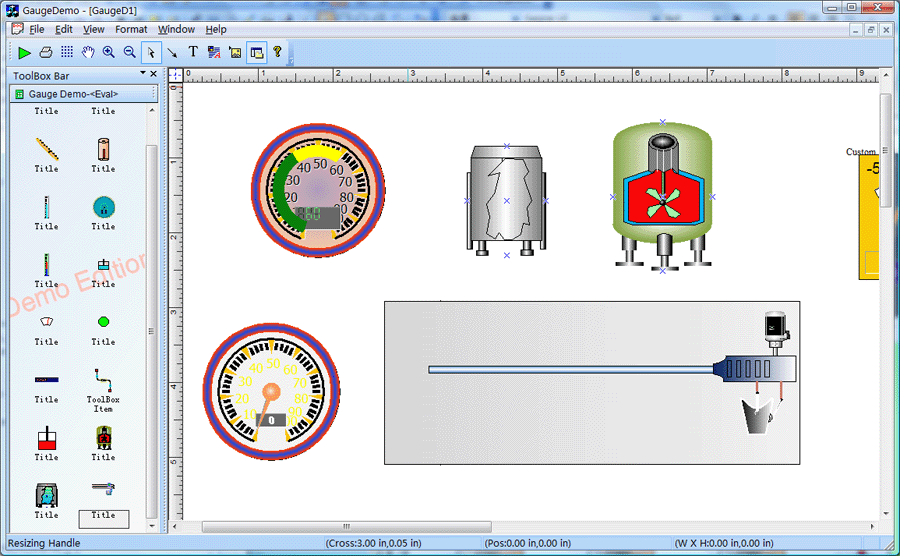
data. Gauge Diagram Solution C++ source code is ready with E-XD++ Enterprise, see sample GaugeDemo, as below:
The UCanCode Gauge Shapes is a set of classes built to display numeric values in a graphical manner as part of E-XD++ applications. The classes implement CObject that display a scale with regular markings and labels and they implement CObject that indicate a value on a scale. It is full Visual Studio .NET tested. The objects can be customized and combined to present many different kinds of appearances. In the real world, depending on the industry, such things are called meters, dials, or gauges. Because there is so much customization that can be done, Gauge Classes does not provide any prebuilt instruments. The GaugeDemo sample application, however, does define many such objects for various purposes and with various appearances and behaviors. For other like of Gauge Shapes, you can build it by yourself.The Gauge solution source code is an excellent kit. The most important properties are easily changed, and it is a snap to experiment with different looks. The consistent use of state indicators, numeric indicators and labels across gauge types makes it easy to present any information... Most of the UCanCode Gauge objects you see are instances of subclasses of the standard CFODrawShape class. Each Gauge has a Background shape (Mostly it uses the exist E-XD++ shapes), a Scale, an Indicator, and a text Label. The UCanCode Gauge library principally consists of the basic Meter Scale and Indicator classes and the Meter class that is a group—a collection of objects including a scale and an indicator. You can create any new gauge objects by using the exist E-XD++ shape classes, these shape classes will be as the background shape of the Gauge objects. Steps: 1. Create a new class CFOPGaugeKnobShape that uses CFOPGaugeCircularShape as base class. 2. Create new class CFOPGaugeMultiPhaseBarShape that uses CFOPGaugeVertLineShape as base class. 3. Create new class CFOPGaugeMultiPhaseEllipseShape that uses CFOPGaugeCircularShape as base class. 4. Create new class CFOPGaugeTankShape that uses CFOCanShape as base class. 5. Modify the following method to use these shapes: CFODrawShape *CExtDataModel::DoCreateShapeByType(UINT m_drawshape, CRect &rcCreate, CString strFileName, CFOToolBoxItem *pCurItem) { CFODrawShape *pReturn = NULL; CString strCaption; CString strName; strCaption = ""; strName = ""; CPoint ptTrack = rcCreate.TopLeft(); if(m_drawshape != FO_COMP_NONE) { CRect rc(rcCreate); rc.NormalizeRect(); if(rc.IsRectEmpty()||(rc.Width()<=10 && rc.Height()<20)) { switch(m_drawshape) { case MY_TANK_GAUGE_SHAPE: { rc = CRect(ptTrack.x-40,ptTrack.y-80,ptTrack.x+40,ptTrack.y+80); } break; case MY_KNOB_GAUGE_SHAPE: case MY_MULTI_ELLIPSE_GAUGE_SHAPE: { rc = CRect(ptTrack.x-120,ptTrack.y-120,ptTrack.x+120,ptTrack.y+120); } break; case MY_MULTI_BAR_GAUGE_SHAPE: { rc = CRect(ptTrack.x-35,ptTrack.y-140,ptTrack.x+35,ptTrack.y+140); } break; default: { } break; } } switch(m_drawshape) { case MY_TANK_GAUGE_SHAPE: { pReturn = new CFOPGaugeTankShape; pReturn->AddRef(); pReturn->Create(rc,""); pReturn->UpdatePosition(); strCaption = GetUniqueCaption(pReturn->GetType()); strName = GetUniqueName(pReturn->GetType()); pReturn->SetObjectCaption(strCaption); pReturn->SetObjectName(strName); } break; case MY_MULTI_ELLIPSE_GAUGE_SHAPE: { pReturn = new CFOPGaugeMultiPhaseEllipseShape; pReturn->AddRef(); pReturn->Create(rc,""); pReturn->UpdatePosition(); strCaption = GetUniqueCaption(pReturn->GetType()); strName = GetUniqueName(pReturn->GetType()); pReturn->SetObjectCaption(strCaption); pReturn->SetObjectName(strName); } break; case MY_KNOB_GAUGE_SHAPE: { pReturn = new CFOPGaugeKnobShape; pReturn->AddRef(); pReturn->Create(rc,""); pReturn->UpdatePosition(); strCaption = GetUniqueCaption(pReturn->GetType()); strName = GetUniqueName(pReturn->GetType()); pReturn->SetObjectCaption(strCaption); pReturn->SetObjectName(strName); } break; case MY_MULTI_BAR_GAUGE_SHAPE: { pReturn = new CFOPGaugeMultiPhaseBarShape; pReturn->AddRef(); pReturn->Create(rc,""); pReturn->UpdatePosition(); strCaption = GetUniqueCaption(pReturn->GetType()); strName = GetUniqueName(pReturn->GetType()); pReturn->SetObjectCaption(strCaption); pReturn->SetObjectName(strName); } break; default: { pReturn = CFODataModel::DoCreateShapeByType(m_drawshape,rcCreate,strFileName); } break; } } return pReturn; } 6. Drawing width link line: void CGaugeDemoView::InitLinkShape() { m_drawshape = FO_COMP_UPRIGHTLINK; m_bUpRightMode = FALSE; SetCurrentDrawingCursor(IDC_FO_DRAWLINK_CURSOR); } |
Copyright ?1998-2007 UCanCode.Net Software, all rights reserved.
Other product and company names herein may be the trademarks of their respective owners.
Please direct your questions or comments to webmaster@ucancode.com