100% VC++ Source Code
--Industrial Control \Design and Simulation Integrated Development Platform VC + + source code solution
Use E-XD++ Enterprise Edition visualization, build your own professional
industrial control, simulation platform!
 Download
this solution
Download
this solution
Creating
Construction Professional Industrial, Simulation Platform
is a very hard work, to use E-XD++ source code visualization component
library will save you more than 70% of development time. In order to
more clearly show how to complete this hard work, we specialize in the
original solution carried out detailed development, built on all
Industrial Development Process Variable, Screen,
Script And other integrated management solution. The solution
involves the construction and project management, product release to the
final exe file generation and other aspects. Construction Engineering
and Management is mainly HMIBuilder to complete the operation and
interpretation of the works mainly responsible for the HMIPlayer works.
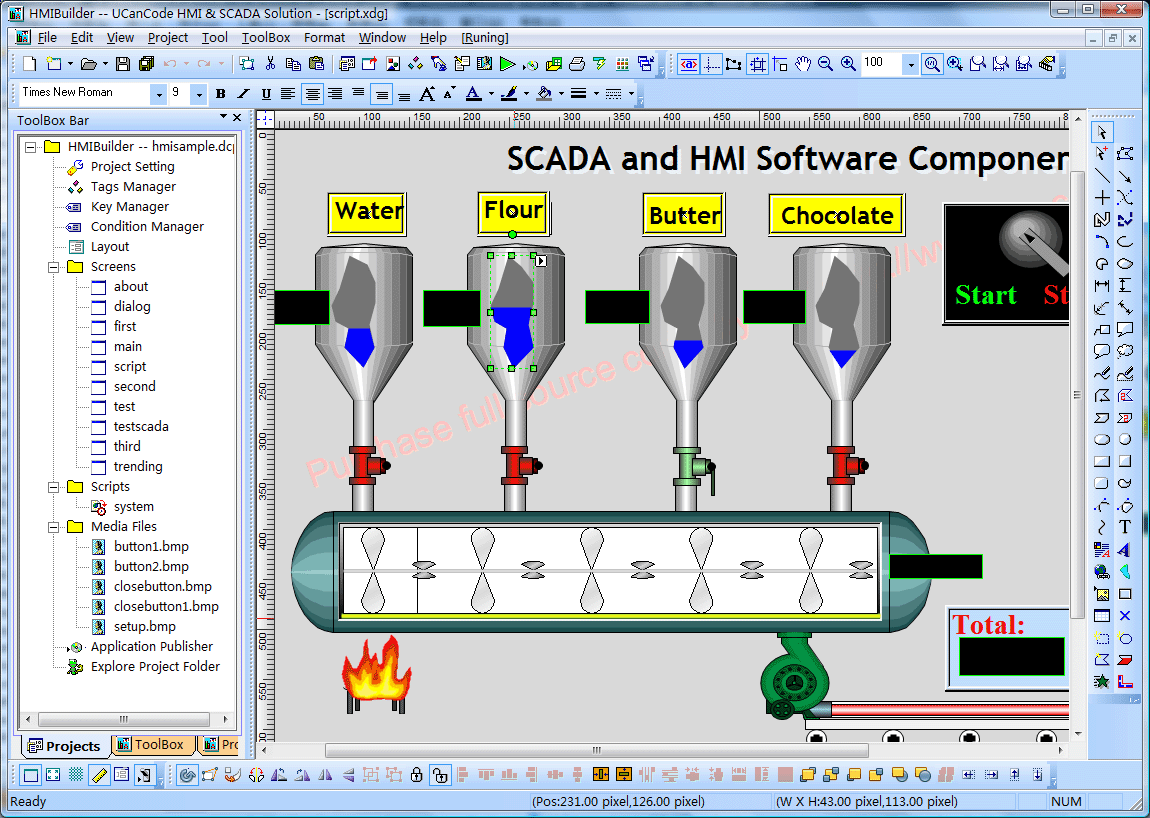
Interface <HMIBuilder>
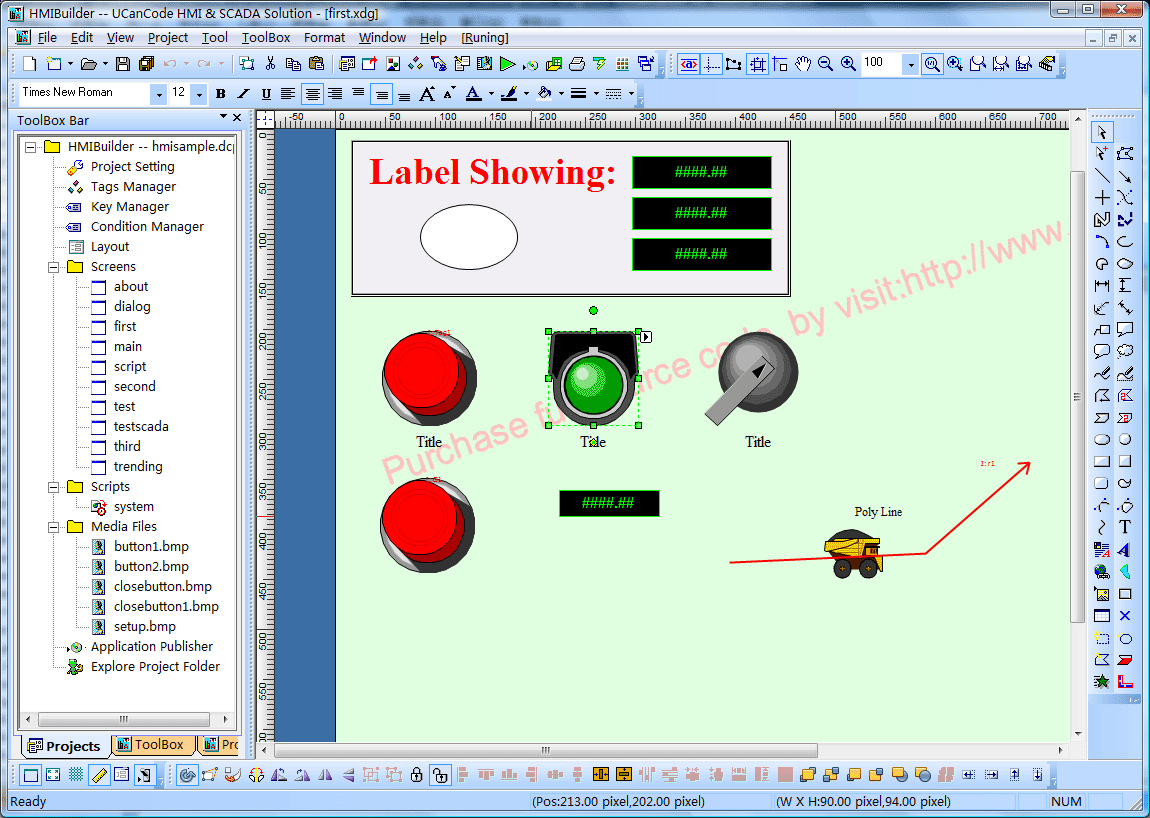
HMIBuilder Example:
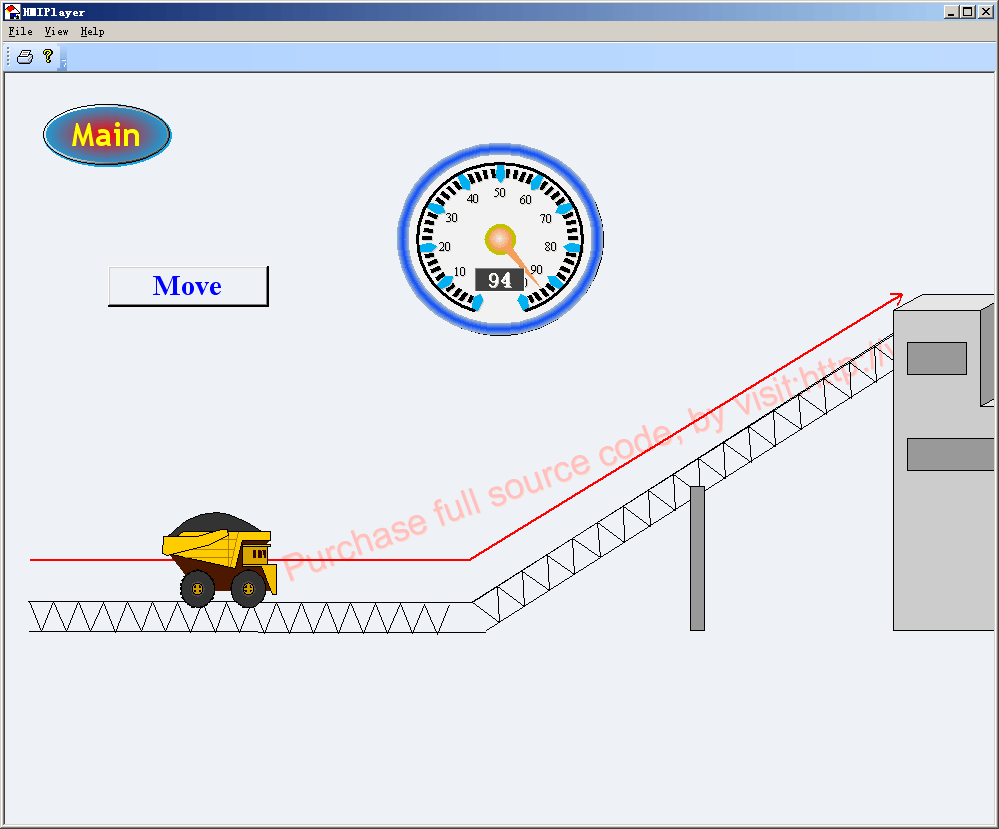
Operation Interface <HMIPalyer>:
Product basic functions:
1. Creating a new project:
Invoke the following dialog box, create a new HMIBuilder projects:
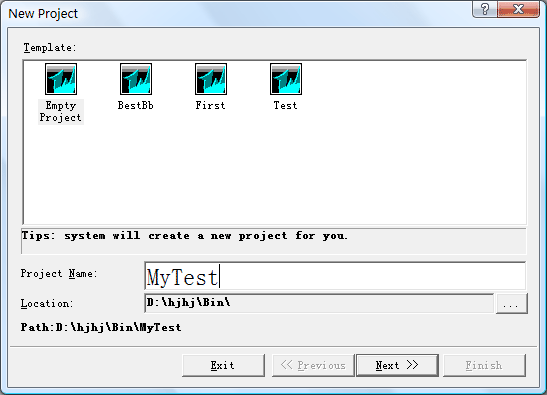
In the above settings dialog box, users
need to enter the project name, project location path. Subsequently, the
project manager will be automatically selected to create a working
directory, the directory name is the project name entered by the user.
This new generation of projects has included a lot of information
inside, including the default user, and the default configuration
information, the user can modify the application process.
Note: The user-generated new works will be added to the project
list.
When the project file its inception, will also create a master screen file and a system script file, the file names were main.xdg and system.dcp.
2 to open an existing project
Select menu "File / Open Project"
menu, the pop-up "File Open" dialog box, select the path where
the existing project. Click "OK" button to open the project file.
If you add the project name and the current project list works the same
name already exists, then the path where if two projects are the same,
will project a list of projects that already exist in coverage; if
different from the path where the two works, works will add a list of
works the same name.
You can also open the file menu, select the dcp file formats directly to
open the project file.
3 Save an existing project
Select the menu "File / Save Project" menu, the system will automatically save the current project file and save all modified documentation.
4 close an existing project
Select the menu "File / Close project"
command, the system will automatically save all documents had a good
open and then close the project file.
5 most recent project file list
The system automatically works to recently opened files are listed in the bottom of the menu, any one of the names by clicking the submenu to open the project file.
6 window manager
In the Window menu in a series of sub-menu on the canvas so that you can easily switch between any sub-menus and other operations.
7 Project Tree
Tool box on the left there is a project
tree, the tree is listed in the project all the screens of the current
project documents and Script File resources. Click the right
mouse button you can add new screens or to add new Script file.
Additional Script File will be automatically placed in the
specified folder to save. Double-click the picture of the tree or the
script file you can open the file for editing.
The following diagram:
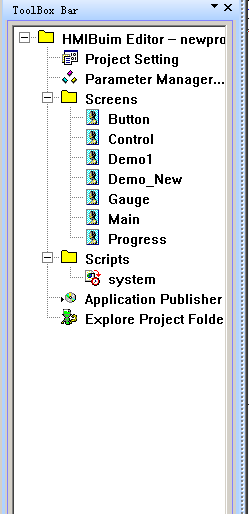
1), Project Setting: set for
the project, for example, the default screen size, background color and
so on. You can also set the main screen.
2), Parameter Manager: System variables to add, delete, and edit.
3), Screens: System of a list of all the images, double-click to
open design.
4), Scripts: the system calls the script file list, a script can
be placed on any number of the calling function.
5), Application Publisher: Published application, generate an
executable file.
6), Explore Project Folder: Open the project folder. ,
8 add new screen picture
Tool box on the left there will be a
project tree, the tree control in the right-click option to add new
screen sub-menu (you can directly select the main menu "Project |
&Add new screen...") to add new pictures. The new screen will
automatically increase the use of works in default settings on this
screen.
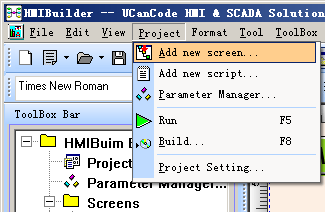
If you want to modify the properties of the screen, use the right mouse button menu or the main menu to carry out.
9 Add a new script
Tool box on the left there is a
project tree, the tree control in the right-click the option "Add a
new script," sub-menu (you can also directly select the main menu "Project
| Add new script...") to add the new script file. Added a new script
file will automatically use the project-related settings. Project tree
by double-clicking icon of the script file to edit this file. If you
need to call the system editing functions, you can function in the right
list, double-click the icon where the function to increase.
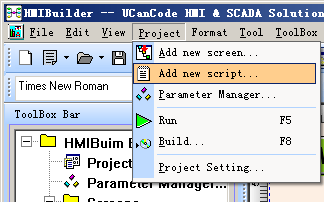
Note: Any additional functions can be invoked, there must be similar with the main function of the parameters of the structure, nothing else, this is the default approach, the official version of the active code can be customized on their own.
10 set the project startup screen
When the initial splash screen is the
Application into the running system, run the system automatically opens
the specified image file. Specific operation as follows:
1), select "Project | Project Settings" menu.
2), in the following dialog box, set the start screen display.
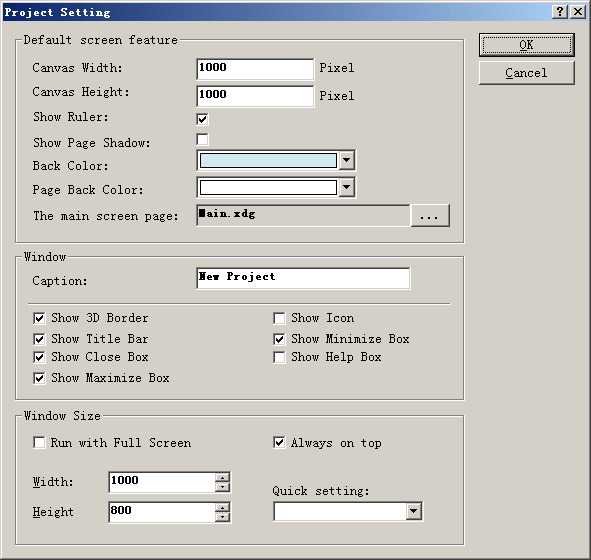
11 init script to set the screen
For any picture file, if you need to pre-screen display to the screen to do something, you can run the script by setting the initial way to set it up. The script can run the script file from the list of direct selection. Java Script and VBScript scripting support two languages.
As follows:
1), select "View
| &Screen Setting..." submenu to open the Settings dialog box
screen.
2), set the initial run Script:
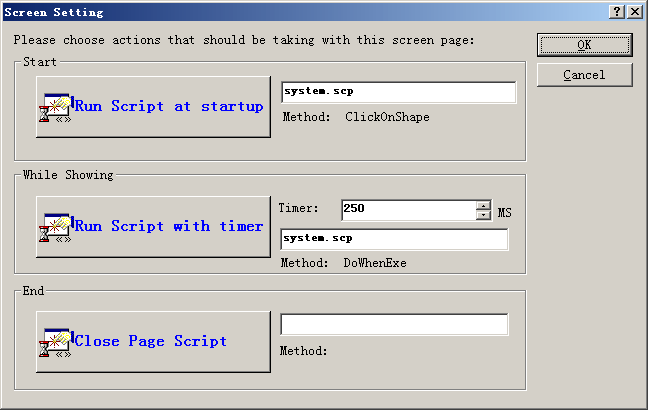
12 to set the script and screen time Refers Given time
For a picture of any project, many times we may need to do some things that time frame, such as regular data collection or regular animation, etc., you can set the timer implementation Script Way to proceed, run the script from the script file directly select the list. Java Script and VBScript scripting support two languages. Loop: the implementation of scripting languages interval a number of options. When the time set to 0 seconds, the Script Will not execute. Make the remaining few, then the script is executed every time the corresponding. For example 3 seconds, then the script executed once every 3 seconds. Magnitude of script execution interval is milliseconds ms.
1), select "View | &Screen
Setting..." submenu to open the Settings dialog box screen.
2), set the timer to run scripts and refresh interval of two parameters:
13 exit of the script to set the
screen
For any picture
file, if you need to do something before closing the screen, you can run
the script by setting out a way to set it up. The script can run the
script file from the list of direct selection. Java Script and VBScript
scripting support two languages.
1), select "View | &Screen Setting..." submenu to open the
Settings dialog box screen.
2), set the screen off the script parameters:
14 variables Management
System provides a variable to add,
delete, and edit function, select "Project | variable management"
menu to open the variable management window, where your application can
add new variables, in particular, when you can use in order to
Construction of real-time database. The following diagram:
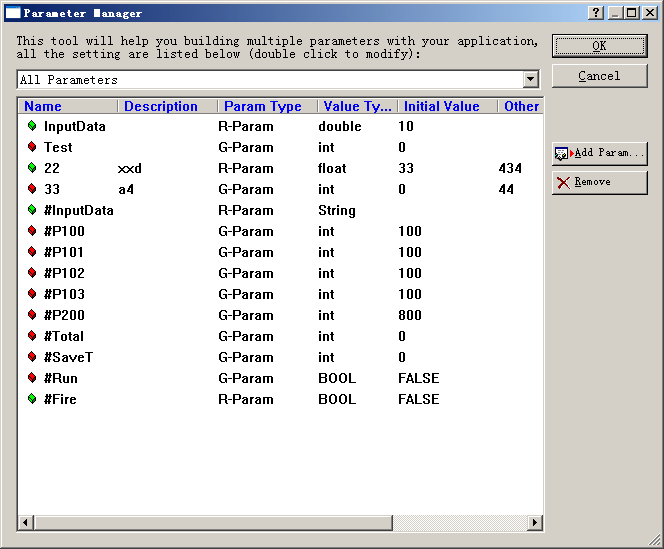
Variables divided into:
Real-time variable - Collected from external variables, such variables are generally read-only.
Global Variables- Also known as intermediate variables, such variables can be read, write, belonging to the middle of operation variables.
System variables- Such variables defined within the system can only be read.
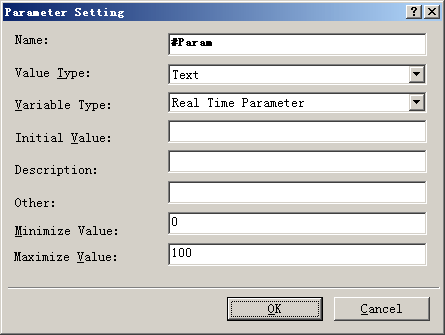
All the variables from the unified management system, just the corresponding graph related to the corresponding variable, while the value of this variable will be automatically changed when displayed. There are many variable attributes (of course, can also be extended according to your needs), the dialog box as shown below:
15 components with a variable link
To screen components to link with the
variable, select the drawing canvas component, and then right-click and
select "Link variables ..."Sub-menu settings can be linked to the
above variables.
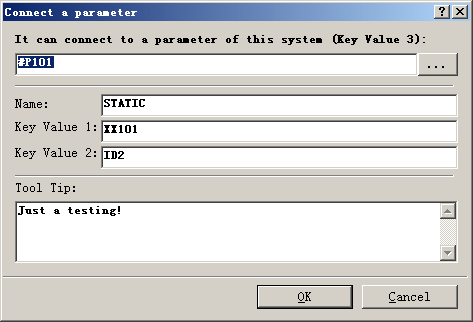
Click the top of the edit box next to the button selection.
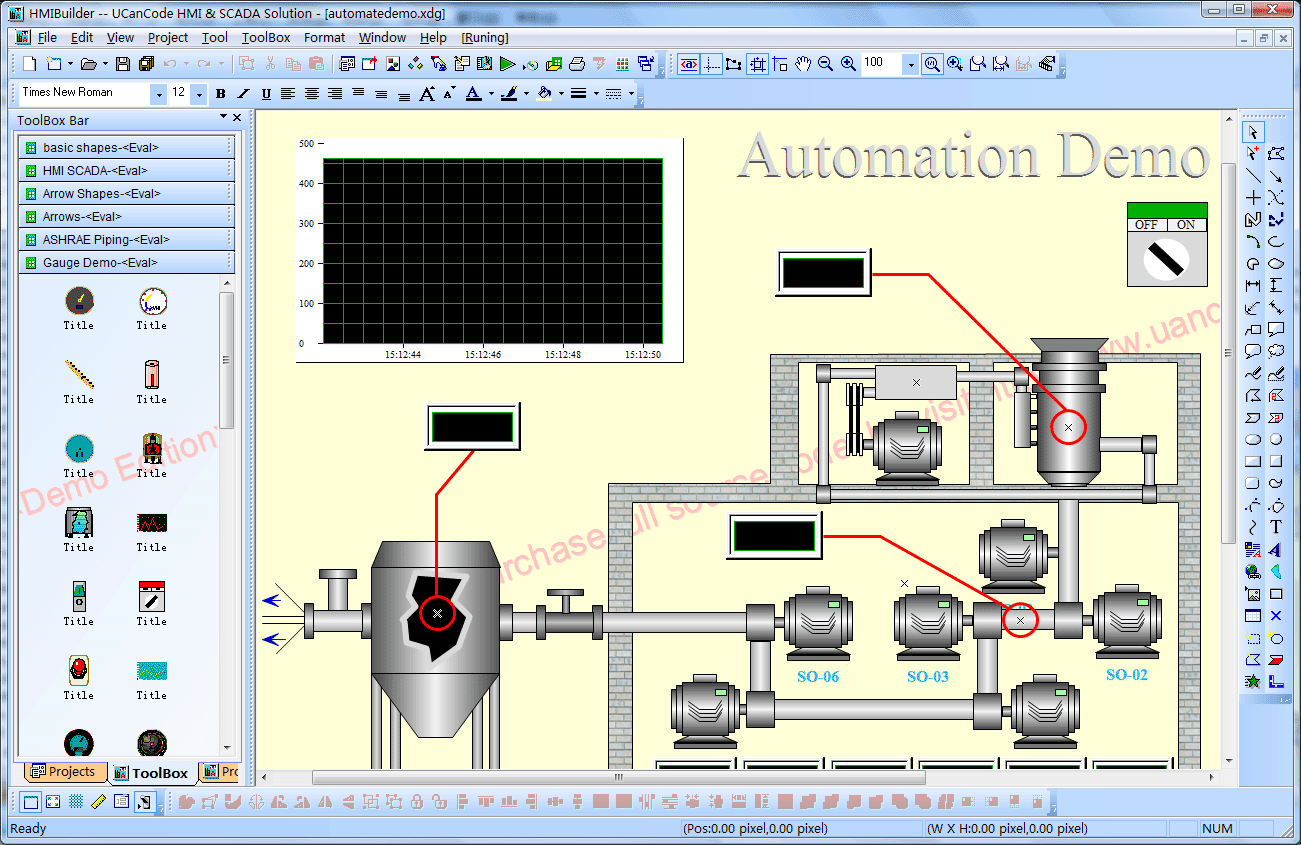
16 Design Screen Pictures
Through the E-XD++ provides the power,
you can create a variety of monitoring or simulation screen, screen
interface controls all operations can be set directly through the menu,
the various components need to canvas the mouse directly from the left
tool box drag into the canvas. With ShapeDesigner you can design more
powerful components of complex graphics. Powerful drawing tools. Full
vector graphics, the zoom will not distortion. Support pixel mobile,
telescopic, rotating, with rich data forms, to complete a variety of
animation and achieve realistic results. Support for mouse movement, to
achieve the interaction with the user.
17 graphic elements for the screen settings click event script
When the components to the canvas in
place after the device by selecting the graphic and press the right
mouse button, you can define a number of executable components for the
graphic event, the event can be directly implemented, such as opening a
new image file, but also can be accomplished by running the action
script code, such as mobile graphics, rotating graphics, scaling
graphics, modify the graphics state so.
1), jump to a new screen:
2), the script code.
Operation is as follows:
1), select the SHAPE.
2), click the right mouse button select "Property | &Event Link..."Sub-menu.
3), then pop up the following dialog box:
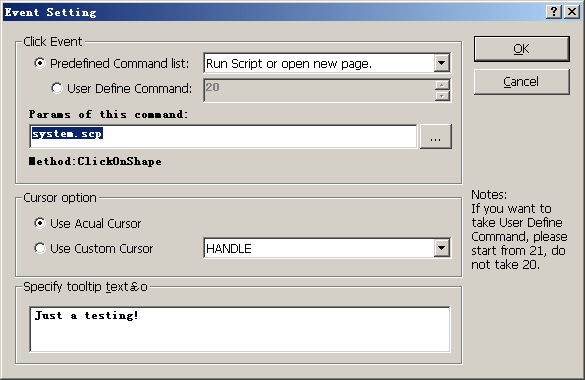
In the dialog box, select System Preferences command "When clicked - run script method" And then in the following command to set the contents of the edit box, set to run the script and related functions. If you choose a xdg file, you automatically jump page. As below:
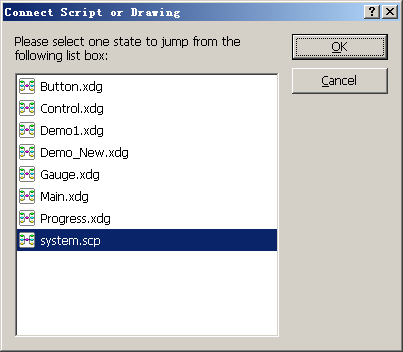
If you choose the system.scp script file, the following dialog box will pop up so you need to perform the function set name:
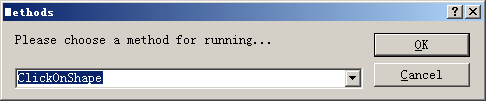
Of course, all the script functions are set in advance system.scp good.
18 Run the program
Good works well in the design file,
click F5 or select "Project | Run\tF5" submenu to run your
design.
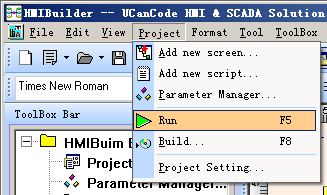
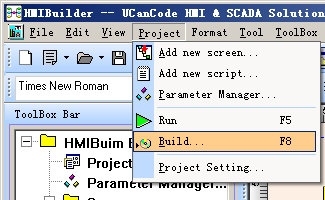
19 Published Applications
Select "Project | &Build...\tF8"
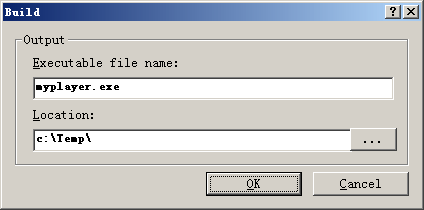
to release your design, in the issue, please set your application name,
issue documents and other information stored path.
Set in the following dialog boxexeName and path:
20 Other
HMIBuilder used to draw a dynamic
picture for display. Used in a project where all the pages are drawn. By
the properties of each pixel set, can be colorful, picture effects of
realistic process to meet user requirements. HMIBuilder and common use
of configuration software essentially similar, is quite special places:
on the one hand, HMIBuilder offers a built-in primitives such as
rectangular, lights, bitmap animation, etc., to meet the user's normal
group state requirements, on the other hand, by the primitive group,
constitute a Photo element, but also has a higher level of animation
features, such as position changes, the mouse drag, etc., while its
primitive attributes still remain. So that the user at all levels to
provide a convenient and efficient for the operation of the system
greatly improved, because a lot of useless without the introduction of
primitive attributes into memory.
HMIBuilder provides a full vector graphics, create graphics with
HMIBuilder, no matter how the user drag zoom, not distortion. It
provides a lot of three-dimensional effect of the manifestations,
regardless of the rectangle, rounded rectangle, ellipse or polygon, can
be filled in various forms to construct a truly step less zoom for fine
graphics.
HMIBuilder also provides support for ActiveX controls, users can import
the ActiveX control in HMIBuilder to change the properties of the
control, call control method as a system service, a great expansion of
the system performance.
HMIBuilder provides pixel copy, paste, cut, etc, In addition, the
alignment of multiple pixel, position change also provides a method of
operation. HMIBuilder can be set to lock and unlock primitives,
user-friendly in the drawing so without misoperation.
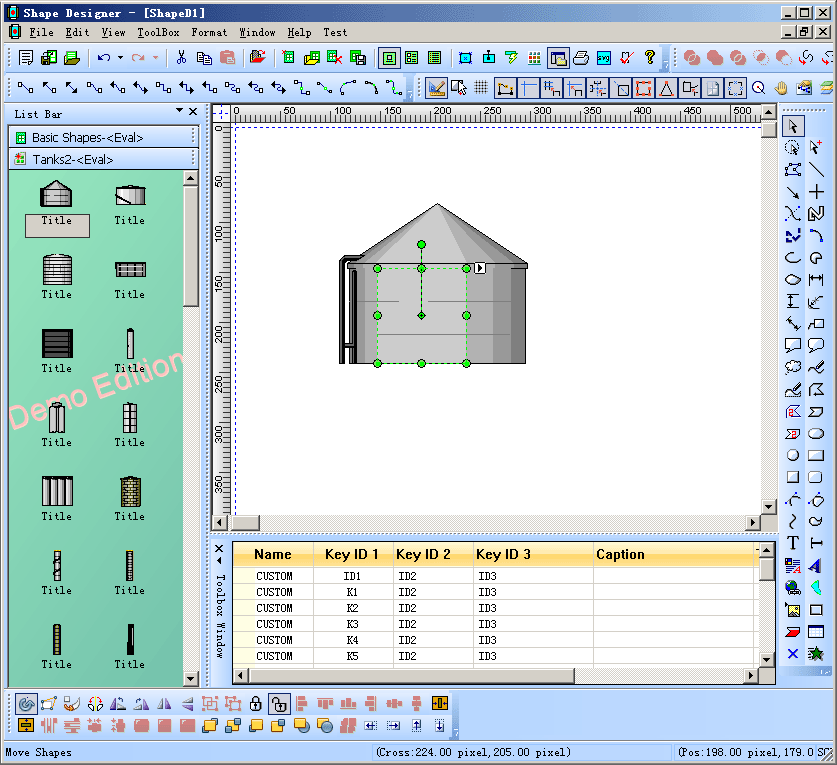
21, Industrial design and simulation components:
E-XD++ Components provide the professional designer ShapeDesigner To help you quickly design and simulation of various industrial components, all components of all is vector graphics. The following diagram:
22, System Preferences simulation components:
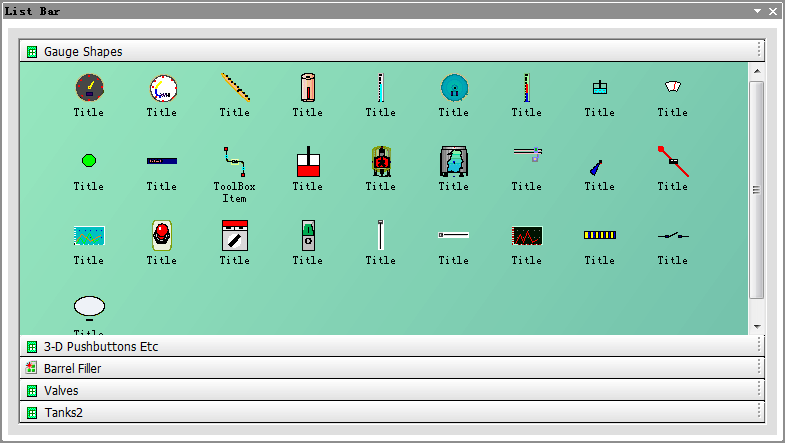
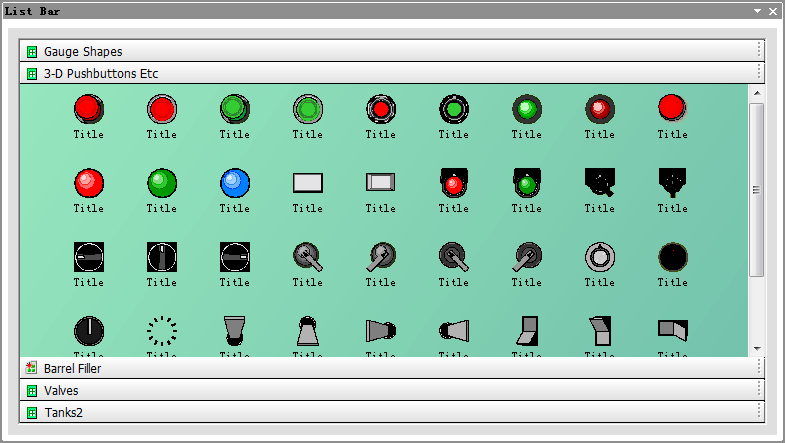
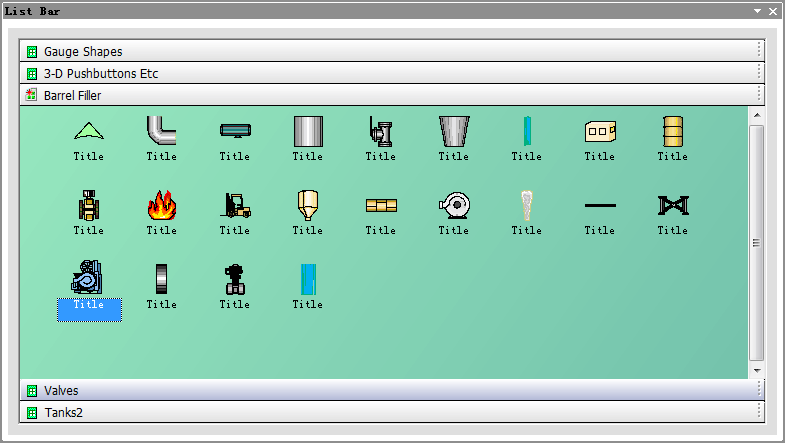
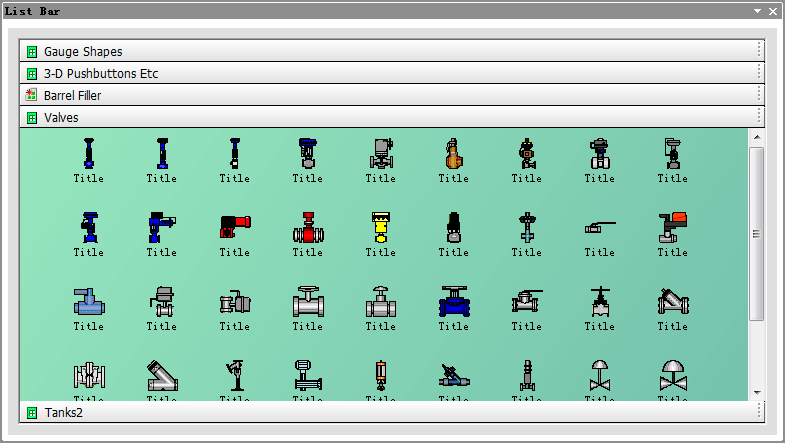
System provides a large number of simulation and industrial components, all of these components as vector graphics. These pre-built components more than 1000. For space is limited, the following is only part of the diagram:
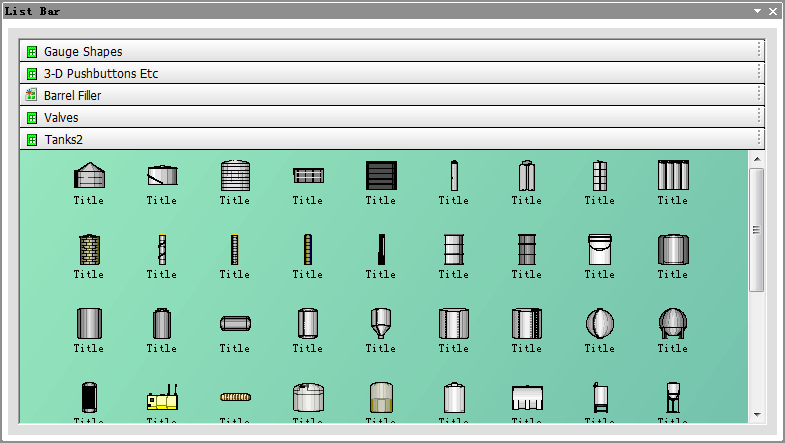
23, set the screen graphic elements unique ID value:
E-XD++ allows the screen to set any one of the only graphic element of the ID, operation is as follows:
1), select the need to set the ID of the graphic elements.
2), click the right mouse button, select "Key Value(&S)..." menu, pop-up dialog box in the following settings:
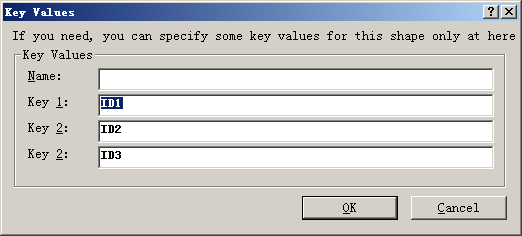
General set of "Key Id 1" can be.
24, enter the variable value changes in animation:
When the input variable value is changed, the corresponding animation can be made to do dynamic display, such as less than 30 shows green, yellow less than 60 shows, less than 100 in red. Operation is as follows:
1)Select the need to set the animation graphics components.
2)Click the right mouse button, select "&Value Change Animate......" menu.
In the following dialog box pops up, you can change the value under the conditions to produce animation effects:
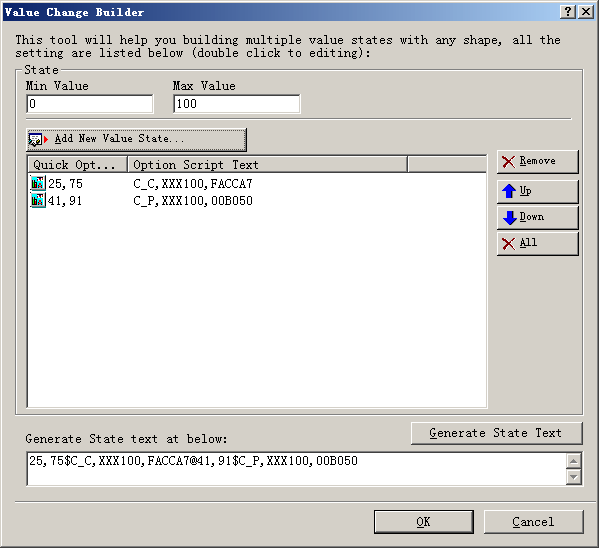
Click the "Add state parameters" button, the following dialog box by adding new state.
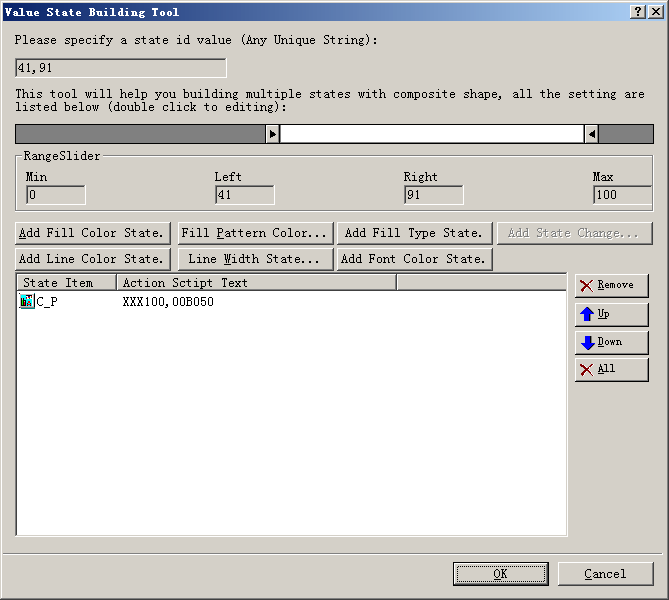
In this dialog box can also create any number of new state results. Including the fill color change, change fill type, text color change, if it is complex graphics and produced a variety of state, where you can specify what is displayed when an input state.
25, animated graphics with hidden settings:
When the input value reaches certain conditions, if you want to hide the graphics, then do the following apply:
1), select the graphic elements.
2), click the right mouse button and choose "whether or hidden..." menu. Through dialog for settings are:
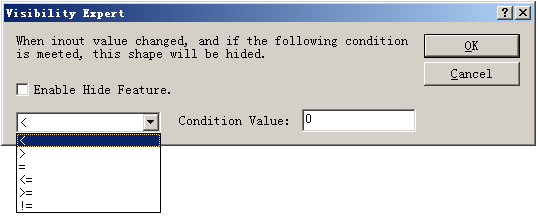
26, making the drop-down menu button:
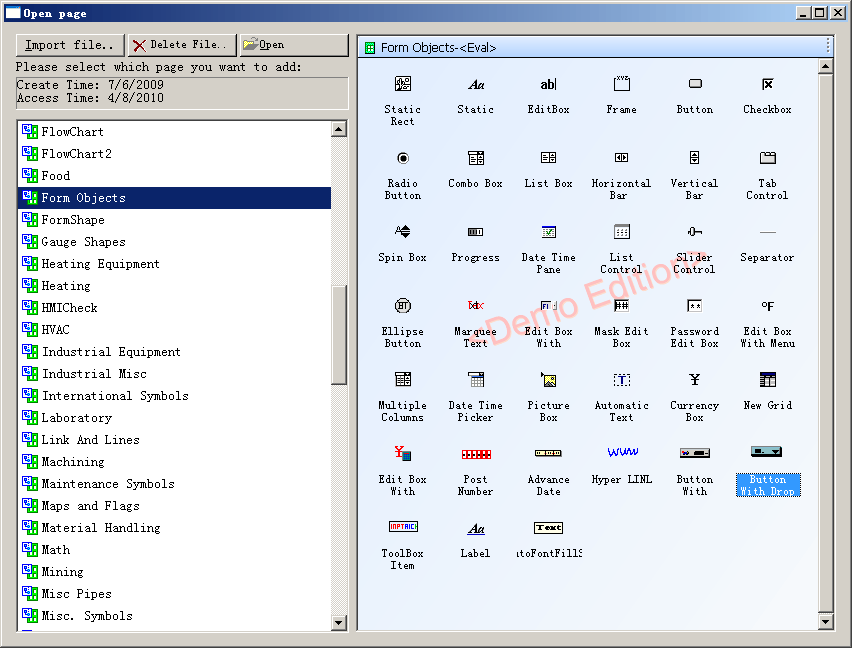
If you need to make a button with a drop-down menu, select "ToolBox | &Open exiting toolbox page..." menu, in the following dialog box pops up, select "Button with drop-menu":
Canvas select this button, click the right mouse button select "SID multi-state designer..." menu to pop up the following dialog box:
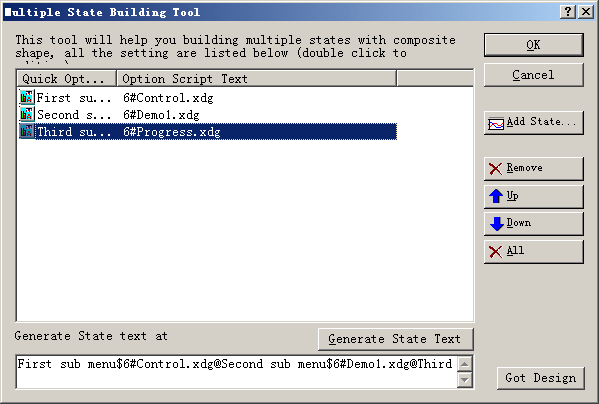
Can in this dialog box, add new menu items, and for each menu item connected to the related incidents.
27, making real-time curve:
If you need to change the real-time dynamic display of the variable curve, please do the following to create:
1), choose "Tools | Insert real-time curve ..."Sub-menu.
2), insert the following real-time curve in the graph, click the right mouse button, select "&Value Change Animate..." submenu.
3), in the following dialog box pops up you can make real-time curve of the curve need to display the content and variables:
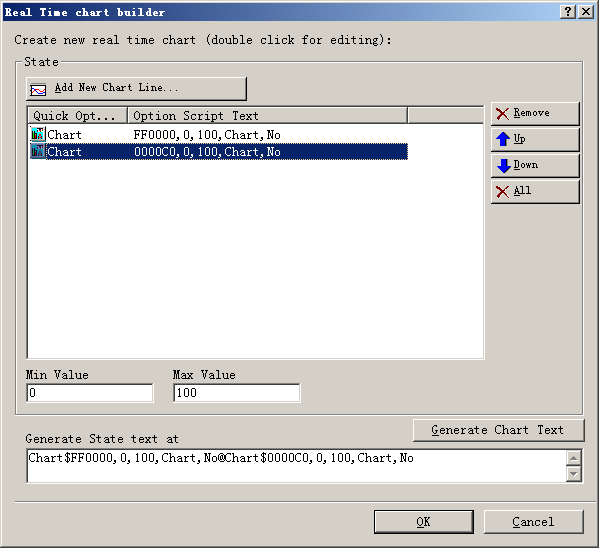
Click the "add new line" button to increase the new display curve, as shown below:
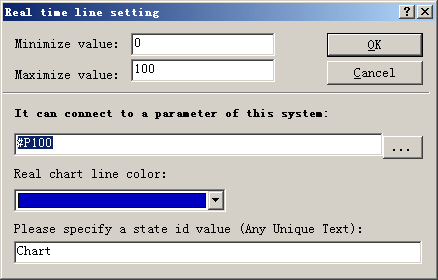
Set in this dialog box, maximum minimum, associated with display variables, set color.
28, how to make the tank water level changes:
Follow these steps:
1), open the tool box in the "Tanks2" page as shown below:
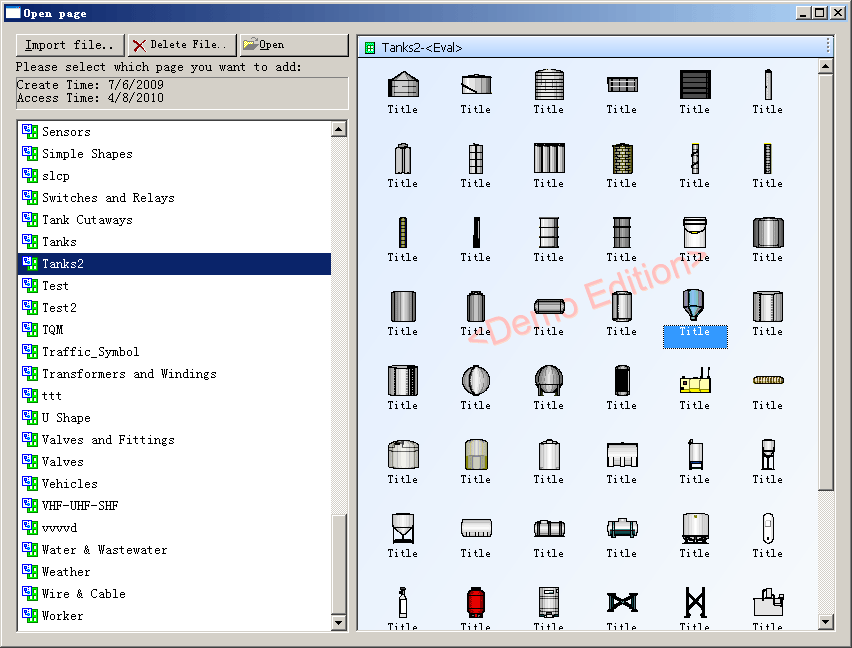
2), pulled into a pitcher to the canvas, as shown below:
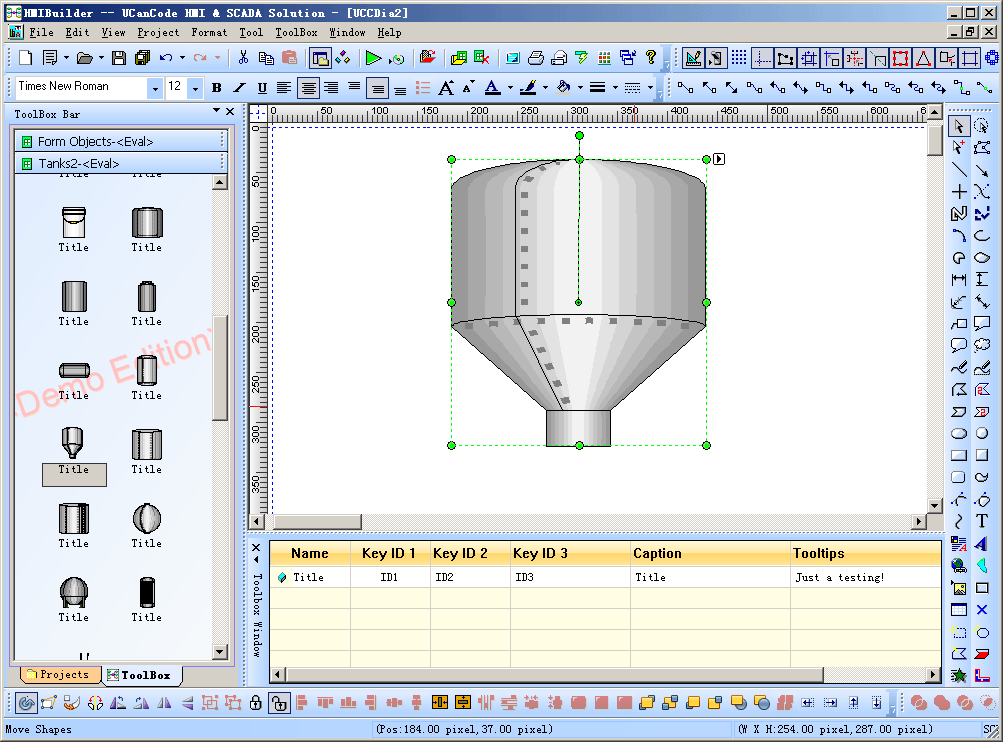
3), select the Drawing toolbar to the right of the penultimate three button, draw a water level gauge:
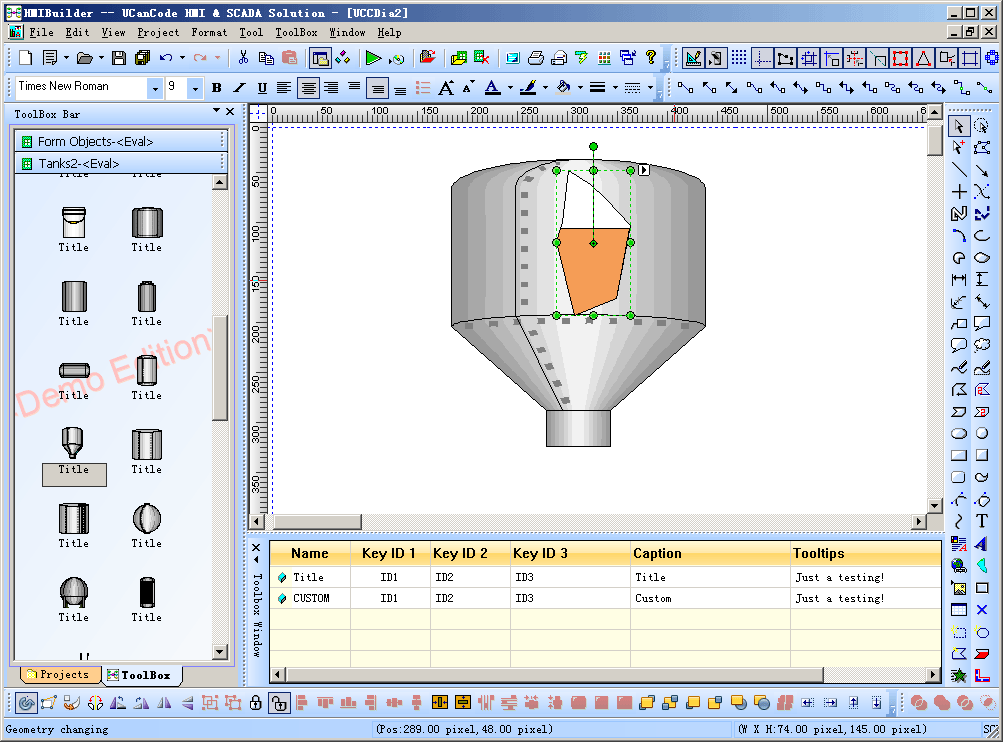
4), check the water level had just drawn, click the right mouse button, select the "link variable..." submenu. In the following dialog box associated with a variable:
So that when the value of the variable changes when the system will automatically refresh to display the water level.
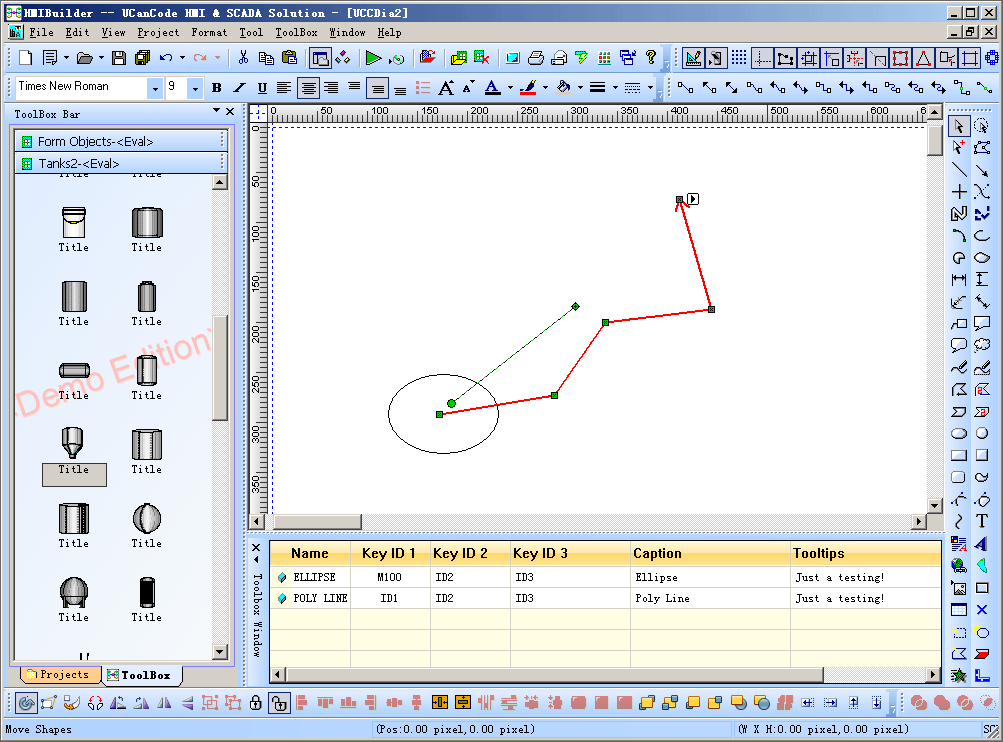
29, how to make the path animation:
Movement along the path if you want to create animation, please refer to the following steps of:
1), drawing on the canvas along the path of movement needs better graphics, if multiple graphics please their combination into a whole, such as an oval along the path of movement.
2), click the right mouse button, the value of their data in a set M100.
3), mouse over the right side of the drawing canvas graphics toolbar, select the penultimate two path graph, and then can draw on the canvas of the graphic needs of a movement path.
4), select the path to the data value 1 is set to XM001.
5), re-select the path graph, click the right mouse button, select "Change the value of connecting animation (& V )..." sub-menu, the following dialog box that pops up will be bound up with the M100 graphics:
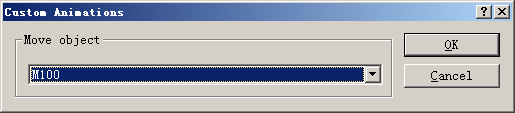
So that the graphic elements can be specified along the path of this exercise, if you want to set up the current movement position, you can specify a value. (Default start-side corresponds to the minimum 0, maximum value corresponding to the most end 100, maximum and minimum can be modified as needed to set the property value. In the run mode, directly through the mouse can also drag along the path the ellipse.
The following diagram:
30, how to make a zoom effect:
If you want to make a zoom animation effects, please refer to the following steps of:
1), open the tool box of the following pages:
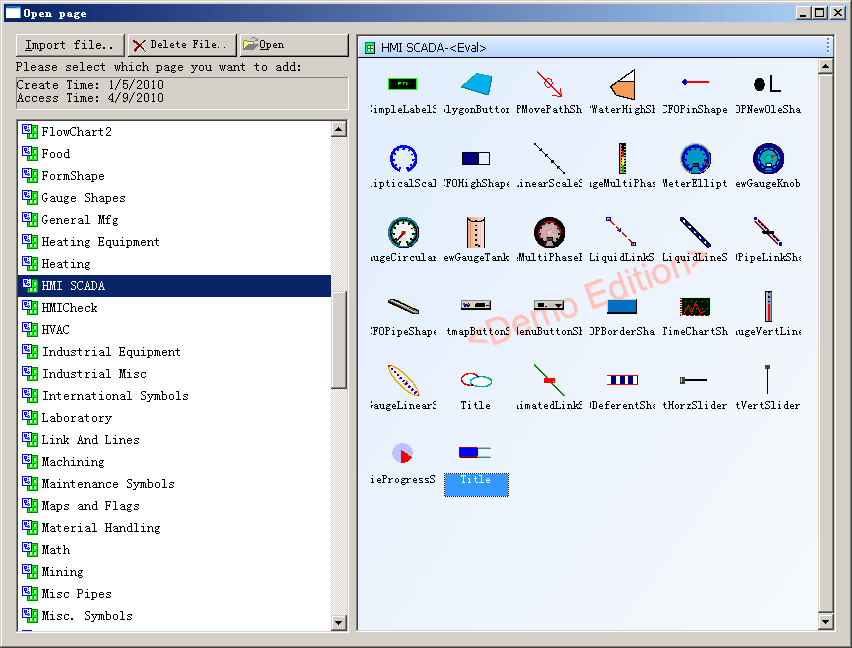
And drag the selected canvas graphics.
2), set up the pixel size, the size of the pixel that is associated with the zoom zoom of the final size of the graphic, that graphic will be associated with scaling within its limited zoom.
3), set the graphic data 1 for the S100.
4) need to zoom in the canvas to draw graphics, and its data a set XS001.
5), select the S100, click the right mouse button, select "&Value Change Animate..." menu, the pop-up dialog box to associate with the XS001.
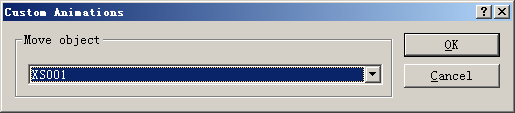
Overall as shown below:

So that the graphic elements can be specified along the range of this scale, if you want to set the current zoom location, you can specify a value. (The default minimum value of 0 corresponds to the beginning, from the last corresponding to the maximum value of 100, maximum and minimum can be modified as needed to set property values. Zoom zoom origin and means please attribute value: P_ID_SCALE_TYPE and P_ID_SCALE_ORIGIN set.
31, edit the script:
In the same script file can define any number of functions, when click the button or open the page and other operations, may choose to perform a function, script editing interface as follows:

Function by double-clicking on the right list of the function of any function can be added to the script.
Description:
E-XD++ Industrial solutions integrated
development environment is not a complete development environment, we
provide the environment for the purpose is to give you an idea of the
development and organization of resources to complete the formal version
of the integrated development environment, source code be provided, you
can need to improve.
Download
this solution
 Buy all the source code:
Official Version of the E-XD++ component library visual graphics solutions for enterprise versions of all of this Source Code, Click the button below to UCanCode Order:
