
|
|
||
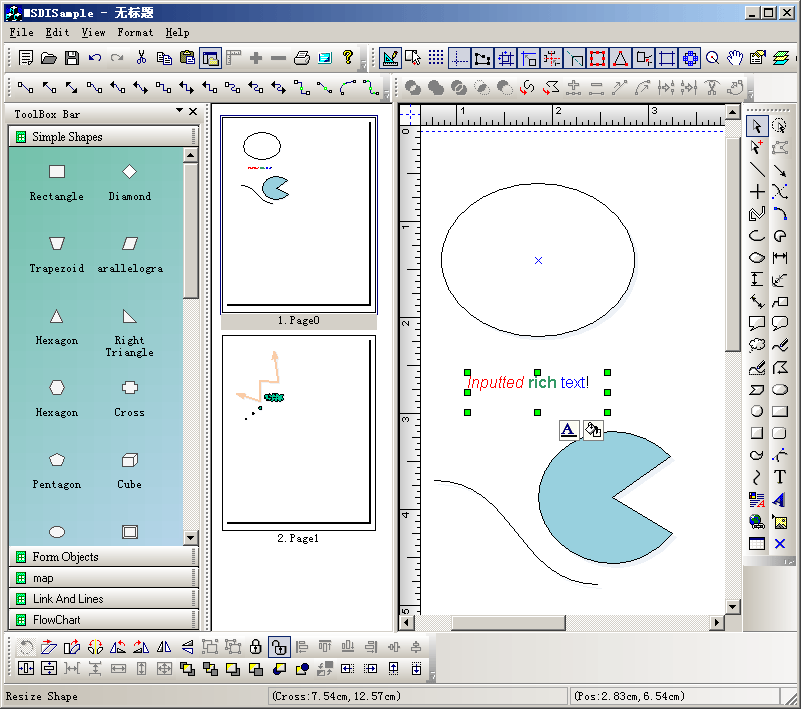
Steps: 1. Create a new class CContentView that uses CFOContentView as base class, this is the left side page list window. 2. Create a new class CCustomMSampleView that uses CFOMultiPageView as base class. 3. Create a CMyExtDataModel that uses CFOMultiPageModel as base class. 4. Create a new CExtDataManager that uses CFOMultiPageModelManager as base class. 5. Create spliter within main window: BOOL CMainFrame::OnCreateClient(LPCREATESTRUCT /*lpcs*/, CCreateContext* pContext) { if (!m_wndSplitterLR.CreateStatic(this, 1, 2)) { TRACE0("Failed to CreateStaticSplitter\n"); return FALSE; } if (!m_wndSplitterLR.CreateView(0, 0, RUNTIME_CLASS(CContentView), CSize(0, 0), pContext)) { TRACE0("Failed to create first pane\n"); return FALSE; } if (!m_wndSplitterLR.CreateView(0, 1, RUNTIME_CLASS(CMSDISampleView), CSize(0, 0), pContext)) { TRACE0("Failed to create first pane\n"); return FALSE; } m_wndSplitterLR.SetColumnInfo(0, 200, 0); return TRUE; } 6. Create custom shape with class CMyCorsssLineShape 7. Create custom property value with class CMyCustomProperties 8. Attach property value with custom shape, call: CMyCustomProperties propLine;
|
Copyright ?1998-2007 UCanCode.Net Software, all rights reserved.
Other product and company names herein may be the trademarks of their respective owners.
Please direct your questions or comments to webmaster@ucancode.com