The following is sample on SCADA
Application:
|
1. Design the
SCADA
symbols:
With E-XD++ full edition, there
is a shapedesigner application
shipped, with this diagramming
tool, you can use many advance
features to build any kind of
SCADA
Software symbols, The
Symbol Editor is an interactive
point-and-click editor that
creates, edits and organizes
intelligent symbols to populate
a user interface, as below: |
|
|
When one composite symbol is
designed, just use Copy/Paste to
place it within the toolbox
window at left side. These
SCADA
Symbols will be ready for use in
future. The Shape Designer
offers graphics editing
capabilities and is fully
interoperable with authoring
tools, such as Adobe Illustrator
or Inkscape, to ensure that the
visual elements of the symbol
are as appealing as possible. It
then adds dynamics to graphics
with rules describing how the
elements of the symbol will
react to data changes. For
example, rules can define the
alarm conditions that will cause
a part of a factory symbol to
blink, or how far a needle on a
rotary gauge will rotate. The
newly created symbol can then be
cleanly organized in palettes
and reused by the other design
tools. By default, the Shape
Designer contains palettes of
fully functional symbols for
diagramming and monitoring
applications, such as gauges,
buttons, meters, dials and more.
What is a
"Symbol?"
A symbol is a self-contained
graphic object that represents a
physical or conceptual element
in the underlying application.
For example, symbols can
represent trucks, factories,
network elements, dials or
gauges.. They have built-in
behavior and an exposed
interface, like a graphic VC++
control. When an application
executes, its symbols connect to
real-world objects and are
"data-aware"—when the underlying
data changes in a meaningful way
to the user, the overlying
symbols change their
appearances. For example, if a
component in a data network
reaches a pre-defined critical
threshold, the symbol associated
with it might display a red
alarm. Or if an airplane has
moved, then its symbol will move
on a map display.
2. Design
SCADA
Software Screen:
With E-XD++ full edition, there
is also a ready to use
SCADA
Screen design tool shipped, with
this tool, you can use any
symbols within the toolbox
window at left side to build any
screen as you want, just drag
and drop, very simple and easy.
|
3. Building your
SCADA Software:
With full
edition of
E-XD++
Visualization
Component, there
is an appwizard
that will help
you building a
base framework
of
SCADA Software
without written
a line of codes,
after the base
framework of
your application
is finished, you
can import any
XDG files into
your
application,
(Please remember
the resource
type must be
XDGRes), to load
a
SCADA
Screen just call
the following
codes, it is
very easy:
LoadXdgFromResource(IDR_MAIN,
_T("XdgRes"),
FALSE);
In fact, this
line of code can
be called at any
place if you
want to load any
new screen at
any time.
4.
Update the
screen with
data:
Mostly we can
use the WM_TIMER
of CWnd to
recieve the data
and refresh the
SCADA
Screen, if you
want to update
only one shape,
just call
UpdateControl of
this shape, but
if you want to
update a list of
shapes one time,
we recommend you
to call
UpdateShapes,
this will works
more effective |
|
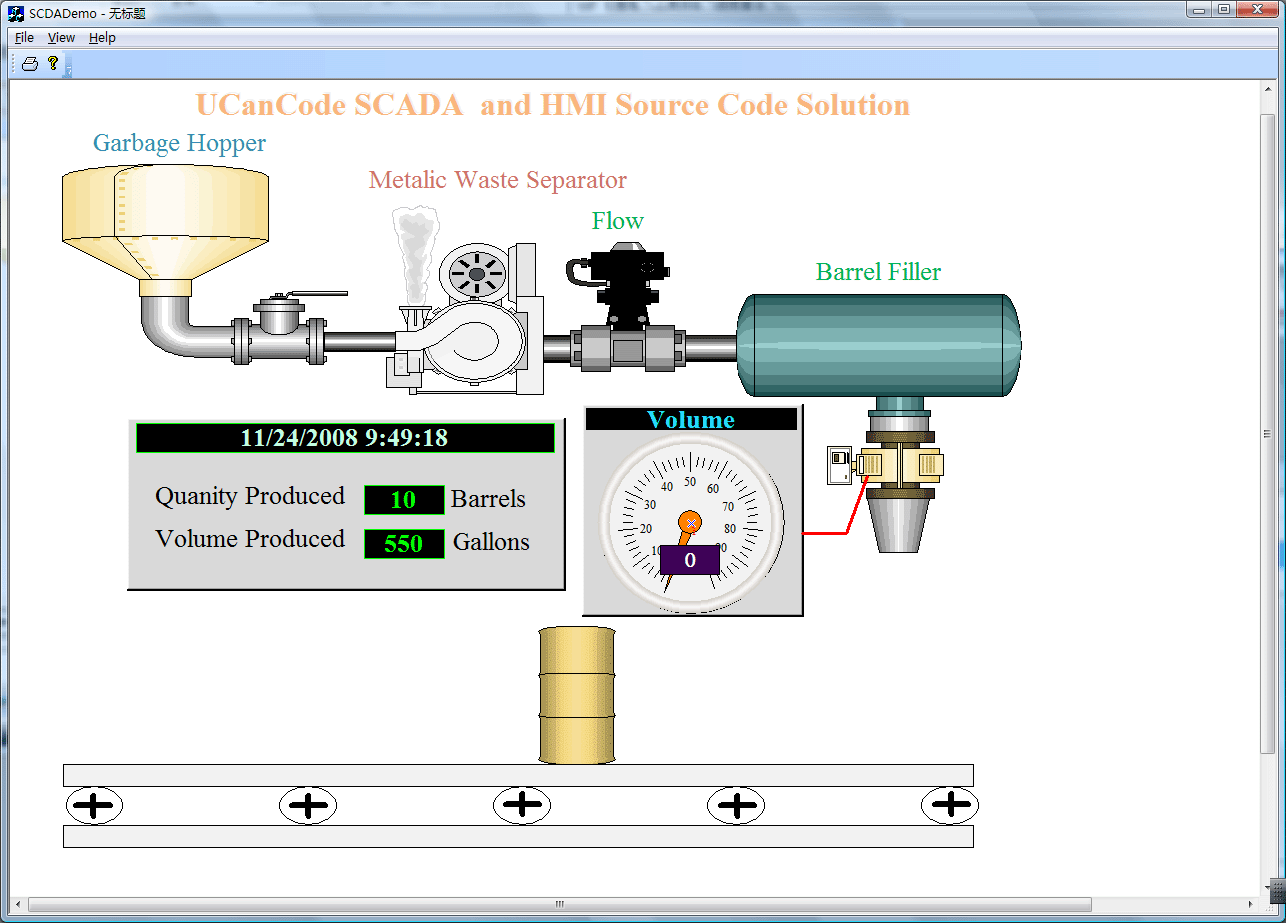
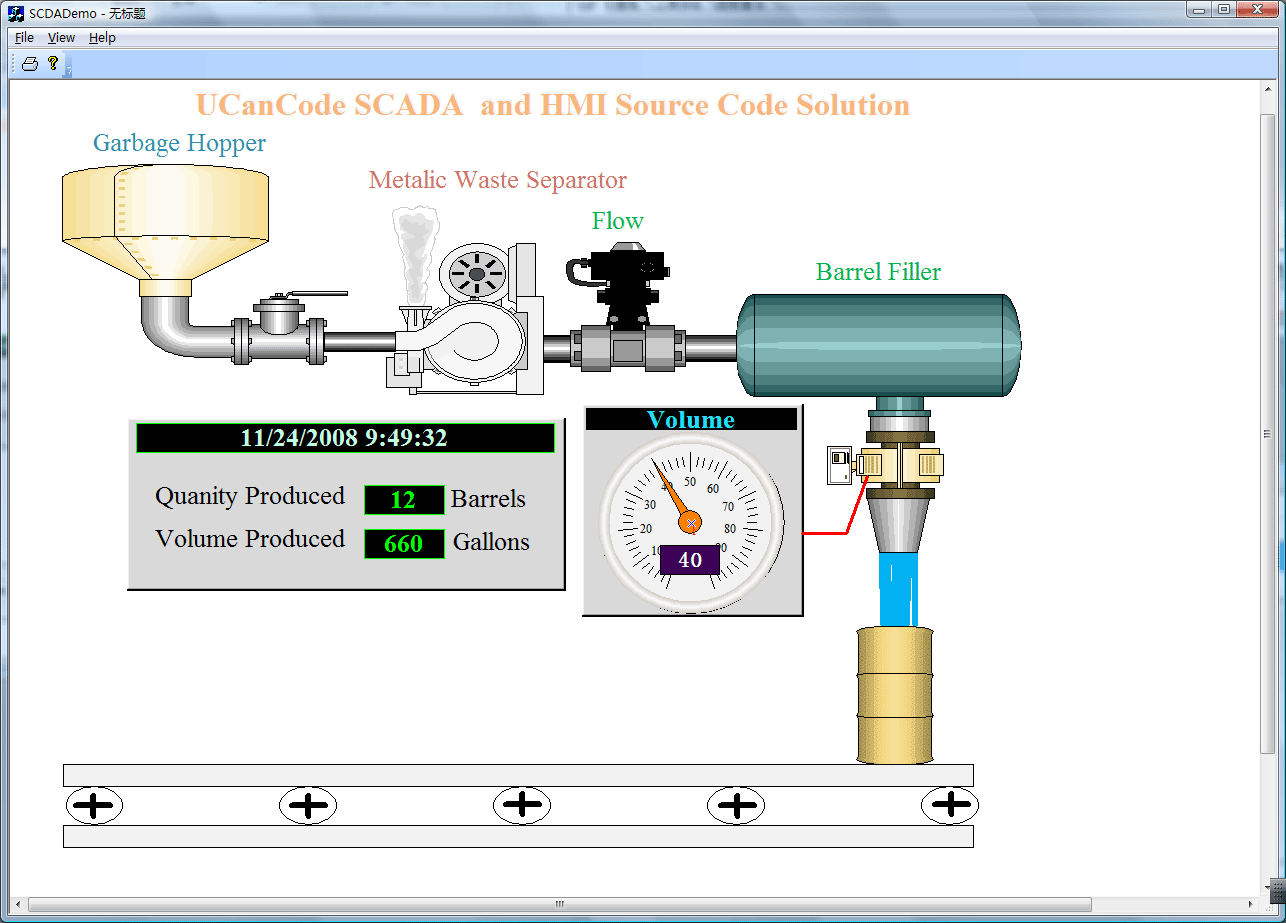
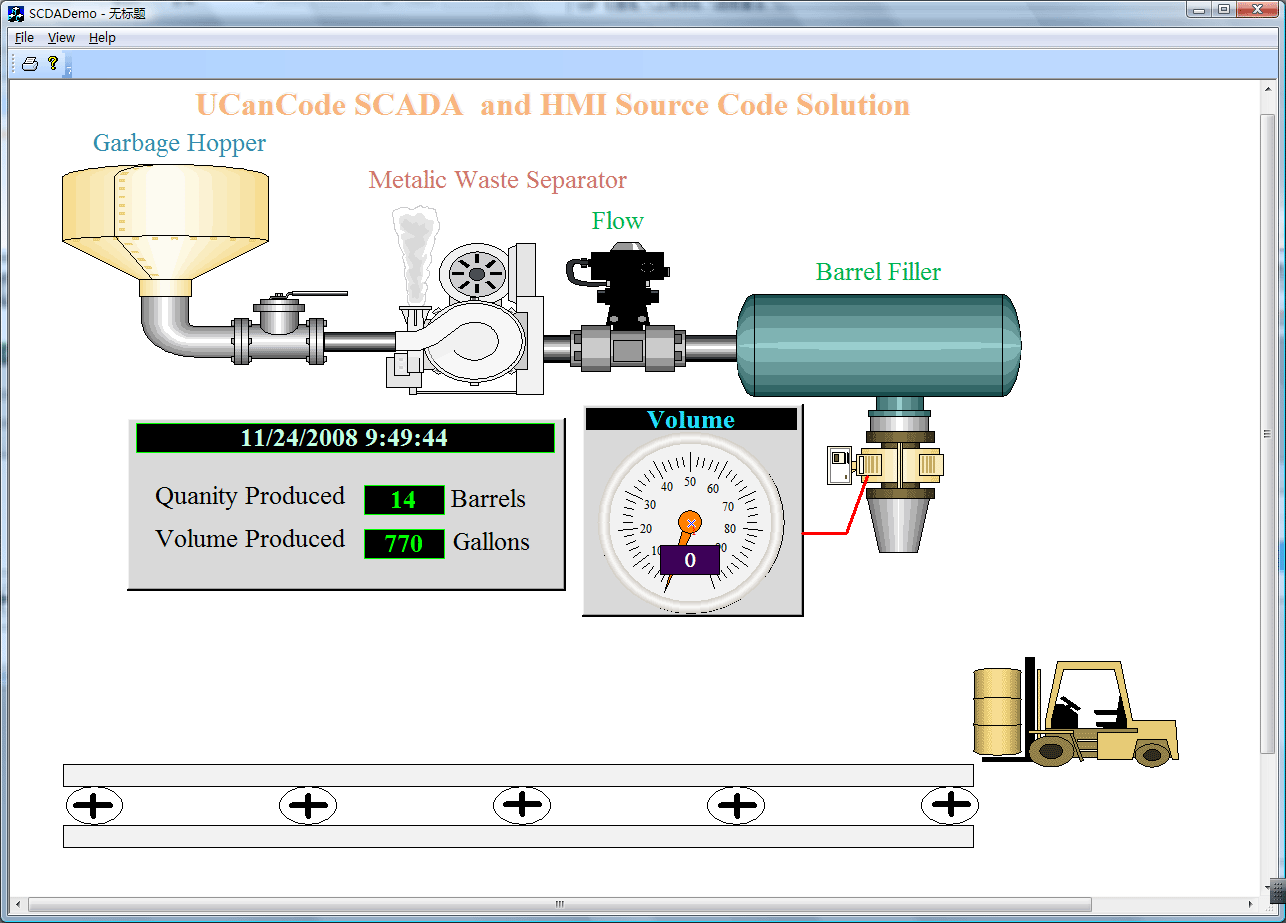
The
following are the running state
with this demo: |
|
State 1:
State 2:
State 3:
With E-XD++
Component,
you can add advanced SCADA functionality to your
applications. The E-XD++ Library is a 100%
VC++ data
rendering and
visualization system, built
specifically for Visual Studio .NET and designed
to bring your User Interface to the printed
page. Now you only need a few days for building
a very powerful label print or report print
application.
The leader in
visualization component -- FULL VC++ Source Code
Shipped!
XD++ Diagrammer Suite is the the world’s leading
VC++ and .NET visualization component. Renowned
for incredibly rich graphics, XD++ helps
thousands developers build applications that
offer unparalleled functionality. Outstanding
productivity lowers project risk and reduces
maintenance headaches. With 10 years of
dedicated research and development, UCanCode
leads the market for visualization technologies,
providing outstanding customer support.
Steps are
below:
1. Load designed
scada screen: #define ID_TIMER_ID 1123
void CSCDADemoView::OnInitialUpdate()
{
SetCurrentModel(GetDocument()->m_pDataModel);
CFODrawView::OnInitialUpdate();
LoadXdgFromResource(IDR_MAIN, _T("XdgRes"), FALSE);
// m_bMain = TRUE;
GetCurrentModel()->SetDesignMode(FALSE);
SetTimer(ID_TIMER_ID, 500, NULL);
pX1 = (CFOPSimpleLabelShape *)GetCurrentModel()->FindShapeWithKey1(_T("D1"));
pX2 = (CFOPSimpleLabelShape *)GetCurrentModel()->FindShapeWithKey1(_T("D2"));
pX3 = (CFOPSimpleLabelShape *)GetCurrentModel()->FindShapeWithKey1(_T("D3"));
pX4 = (CFOPSimpleLabelShape *)GetCurrentModel()->FindShapeWithKey1(_T("D4"));
pX5 = (CFOPSimpleLabelShape *)GetCurrentModel()->FindShapeWithKey1(_T("D5"));
pK1 = (CFOPSimpleLabelShape *)GetCurrentModel()->FindShapeWithKey1(_T("K2"));
pK2 = (CFOPSimpleLabelShape *)GetCurrentModel()->FindShapeWithKey1(_T("K3"));
pK3 = (CFOPSimpleLabelShape *)GetCurrentModel()->FindShapeWithKey1(_T("K4"));
pK4 = (CFOPGaugeCircularShape *)GetCurrentModel()->FindShapeWithKey1(_T("K1"));
if(pX4 != NULL)
{
ptMove = pX4->GetSnapRect().TopLeft();
}
}
2. Recieve data
with timer:
void CSCDADemoView::OnTimer(UINT
nIDEvent)
{ if(nIDEvent
== ID_TIMER_ID)
{
CFODrawShapeList lstUpdate;
if(pX1
!= NULL)
{
CString str =
pX1->GetStateType();
if(str
== _T("100"))
{
pX1->SetStateType(_T("101"));
}
else
{
pX1->SetStateType(_T("100"));
}
lstUpdate.AddTail(pX1);
}
switch(nCurStep)
{
case 0:
{
if(pX2
!= NULL)
{
CString str
= pX2->GetStateType();
if(str
!= _T("100"))
{
pX2->SetStateType(_T("100"));
lstUpdate.AddTail(pX2);
}
}
if(pX3
!= NULL)
{
pX3->SetVisible(TRUE);
CPoint pt
= GetMovePos();
pX3->MoveTo(pt.x,
pt.y);
lstUpdate.AddTail(pX3);
}
if(pX4
!= NULL)
{
pX4->SetVisible(FALSE);
pX4->MoveTo(ptMove.x,
ptMove.y);
lstUpdate.AddTail(pX4);
}
}
break;
case 1:
case 2:
case 3:
case 4:
case 5:
{
if(pX3
!= NULL)
{
CPoint pt
= GetMovePos();
pX3->MoveTo(pt.x,
pt.y);
lstUpdate.AddTail(pX3);
}
}
break;
case 6:
case 7:
case 8:
{
if(pX2
!= NULL)
{
CString str
= pX2->GetStateType();
if(str
!= _T("101"))
{
pX2->SetStateType(_T("101"));
lstUpdate.AddTail(pX2);
}
}
if(pK4
!= NULL)
{
double dValue
= 20.0
* (nCurStep -
5);
pK4->GetIndicator()->SetValue(dValue);
pK4->GetNumber()->SetValue(dValue);
lstUpdate.AddTail(pK4);
}
}
break;
case 9:
{
if(pX2
!= NULL)
{
CString str
= pX2->GetStateType();
if(str
!= _T("100"))
{
pX2->SetStateType(_T("100"));
lstUpdate.AddTail(pX2);
}
}
if(pX3
!= NULL)
{
pX3->SetVisible(FALSE);
lstUpdate.AddTail(pX3);
}
if(pX4
!= NULL)
{
pX4->SetVisible(TRUE);
lstUpdate.AddTail(pX4);
}
if(pK4
!= NULL)
{
pK4->GetIndicator()->SetValue(0);
pK4->GetNumber()->SetValue(0);
lstUpdate.AddTail(pK4);
}
}
break;
case 10:
{
CPoint ptOffset
= ptMove +
CPoint(50,0);
if(pX4
!= NULL)
{
pX4->MoveTo(ptOffset.x,
ptOffset.y);
lstUpdate.AddTail(pX4);
}
}
break;
}
nCurStep ++;
if(pK1
!= NULL)
{
COleDateTime date
= COleDateTime::GetCurrentTime();
CString str;
str.Format(_T("%u/%u/%u
%u:%u:%u"),
date.GetMonth(),
date.GetDay(),
date.GetYear(),
date.GetHour(),
date.GetMinute(),
date.GetSecond());
pK1->SetLabelText(str);
lstUpdate.AddTail(pK1);
}
if(nCurStep
> 10)
{
nCurStep =
0;
nTotalFill
++;
if(pK2
!= NULL)
{
CString str;
str.Format(_T("%u"),
nTotalFill);
pK2->SetLabelText(str);
lstUpdate.AddTail(pK2);
}
if(pK3
!= NULL)
{
CString str;
str.Format(_T("%u"),
nTotalFill *
55);
pK3->SetLabelText(str);
lstUpdate.AddTail(pK3);
}
}
if(lstUpdate.GetCount()
> 0)
{
UpdateShapes(&lstUpdate);
}
}
else
{
CFODrawView::OnTimer(nIDEvent);
}
}
|