
|
|
||
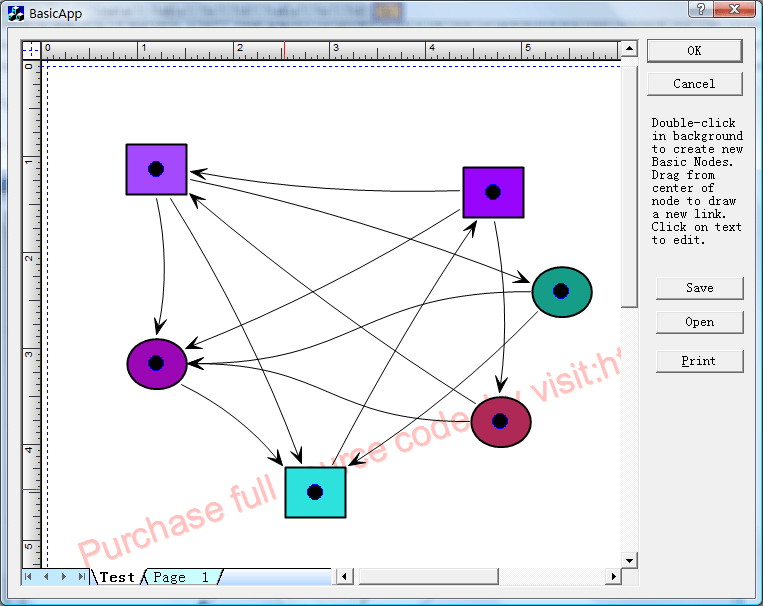
Steps: 1. Create a new class CExtTabModel that uses CFOTabPageModel as base class. 2. Create a new class CExtTabModelManager that uses CFOTabModelManager as base class. 3. Create a new tab page window class CNetBaseDlgWnd that uses CFOTabPageWnd as base class. 4. Modify the codes of header file of dialog: CNetBaseDlgWnd m_wndCanvas; 5. Create canvas: CFOTabPageModel *pModel = (CFOTabPageModel *)m_pMultiModel->InsertTab(); CRect theRect; GetDlgItem(IDC_CANVAS)->GetWindowRect( &theRect ); ScreenToClient(&theRect); VERIFY(m_wndTab.Create(this,m_pMultiModel,theRect,WS_CHILD|WS_VISIBLE|WS_VSCROLL|WS_HSCROLL|WS_TABSTOP,IDC_CANVAS)); DWORD dwStyle = WS_CHILD|WS_VISIBLE; m_wndCanvas.SetCurrentModel(pModel); m_wndCanvas.Create(dwStyle, theRect,&m_wndTab,1212); m_wndTab.AttachWnd(&m_wndCanvas,(CFOTabPageModel *)pModel,"Test");
|
Copyright ?1998-2007 UCanCode.Net Software, all rights reserved.
Other product and company names herein may be the trademarks of their respective owners.
Please direct your questions or comments to webmaster@ucancode.com